All posts by ephestione

Fare il backup compresso del database MySQL con PHP e inviarlo come allegato email

Ero un felice utente di MySQLDumper fino a quando Tophost non ha aggiornato i server all’architettura cloud e all’ultima versione di PHP, cosa che ha comportato la scomparsa di un paio di moduli PERL necessari e mi ha lasciato a terra (la routine PHP di MySQLDumper è molto lenta ed usa javascript per ricaricare le pagine, il che la rende incompatibile sia con wget che cronjob remoti come SetCronJob.com).

Così ho cercato e trovato due guide su internet (questa, e questa), le ho mischiate assieme potenziando soprattutto il codice di David Walsh, ho aggiunto un pizzico di compressione bzip2, e ho messo il tutto sul mio spazio web.

Ho rimosso la parte in cui è possibile selezionare quali tabelle salvare: ho pensato che un backup degno di questo nome è “all-inclusive”, e in fondo chiunque avesse il bisogno particolare di salvare solo alcune tabelle dovrebbe essere anche piuttosto navigato da poter modificare il codice in proprio.

AGGIORNAMENTO 9/9/11: siccome ne avevo bisogno (lo script andava incontro ad un errore di memoria insufficiente) ho aggiunto qualche riga per riattivare la lista delle tabelle da ignorare, basta riempire l’array con i nomi che vi servono.

Questo è il risultato:

<?php
$creationstart=strtok(microtime()," ")+strtok(" ");

$dbhost="indirizzo.server.mysql";
$dbname="nomedatabase";
$dbuser="usernamemysql";
$dbpass="passwordmysql";

$mailto="scrivimi@lamiacasella.it";
$subject="Backup DB";
$from_name="Il tuo caro sito web";
$from_mail="noreply@ilmiosito.it";

mysql_connect($dbhost, $dbuser, $dbpass);
mysql_select_db($dbname);

$tablesblocklist=array(
    "tablename1"=>1,
    "tablename2"=>1,
    "tablename3"=>1,
);
$tables = array();
$result = mysql_query("SHOW TABLES");
while($row = mysql_fetch_row($result))
$tables[] = $row[0];
foreach($tables as $table) {
if (!isset($tablesblocklist[$table])) {
$result = mysql_query("SELECT * FROM $table");
$return.= "DROP TABLE IF EXISTS $table;";
$row2 = mysql_fetch_row(mysql_query("SHOW CREATE TABLE $table"));
$return.= "\n\n".$row2[1].";\n\n";
while($row = mysql_fetch_row($result)) {
$return.= "INSERT INTO $table VALUES(";
$fields=array();
foreach ($row as $field)
$fields[]="'".mysql_real_escape_string($field)."'";
$return.= implode(",",$fields).");\n";
}
$return.="\n\n\n";
}
}
$filename='db-backup-'.date("Y-m-d H.m.i").'.sql.bz2';

$content=chunk_split(base64_encode(bzcompress($return,9)));
$uid=md5(uniqid(time()));
$header=
"From: ".$from_name." <".$from_mail.">\r\n".
"Reply-To: ".$replyto."\r\n".
"MIME-Version: 1.0\r\n".
"Content-Type: multipart/mixed; boundary=\"".$uid."\"\r\n\r\n".
"This is a multi-part message in MIME format.\r\n".
"--".$uid."\r\n".
"Content-type:text/plain; charset=iso-8859-1\r\n".
"Content-Transfer-Encoding: 7bit\r\n\r\n".
$message."\r\n\r\n".
"--".$uid."\r\n".
"Content-Type: application/octet-stream; name=\"".$filename."\"\r\n".
"Content-Transfer-Encoding: base64\r\n".
"Content-Disposition: attachment; filename=\"".$filename."\"\r\n\r\n".
$content."\r\n\r\n".
"--".$uid."--";
mail($mailto,$subject,"",$header);

$creationend=strtok(microtime()," ")+strtok(" ");
$creationtime=number_format($creationend-$creationstart,4);
echo "Backup del database completato, compresso a bz2 e spedito per posta elettronica in $creationtime secondi";
?>

(WordPress ha rimosso l’indent e non ho voglia di aggiustarlo a mano)

L’intera routine viene completata in circa 7secondi sul mio non tanto sveglio server Tophost, inclusi la compressione bzip2 e l’invio per posta elettronica, mentre il salvataggio del file in formato solo testo nel codice originale di David impiegava sullo stesso server 17secondi; probabilmente la differenza è dovuta alla rimozione di diversi cicli ridondanti, e all’uso delle funzioni native mysql_real_escape_string() e implode().

Sinceri ringraziamenti vanno ai rispettivi autori delle guide, senza le quali non stare scrivendo questa paginetta oggi 😉

Zip MySQL database backup with PHP and send as email attachment

I was a happy user of MySQLDumper until a while ago, when my shared hosting upgraded to the cloud architecture and latest PHP version; with that, some modules for PERL went missing and I was left without a viable backup solution (MySQLDumper PHP approach uses a javascript reloading routine which is superslow and is not compatible with wget nor remote cronjobs like SetCronJob.com).

So I found a couple of tutorials on the net (this, and this), mixed them together, especially improving David Walsh’s routine, blended them with some healthy bzip2 compression, and shipped to my webspace.

I stripped the part where you can select which tables to backup; I figured that any backup deserving this name should be “all-inclusive”; also I think that anyone with the special need to backup only selective tables should also be smart enough to change the code to suit his/her needs.

UPDATE 9/9/11: I just added a snippet of code to blacklist some tables from the backup, since I needed to trim the size or it gave a fatal error about the available memory being full; just fill the array with rows as you see fit

This is the result:

<?php
$creationstart=strtok(microtime()," ")+strtok(" ");

$dbhost="your.sql.host";
$dbname="yourdbname";
$dbuser="yourmysqlusername";
$dbpass="yourmysqlpassword";

$mailto="mail.me@mymailbox.com";
$subject="Backup DB";
$from_name="Your trustworthy website";
$from_mail="noreply@yourwebsite.com";

mysql_connect($dbhost, $dbuser, $dbpass);
mysql_select_db($dbname);

$tablesblocklist=array(
    "tablename1"=>1,
    "tablename2"=>1,
    "tablename3"=>1,
);
$tables = array();
$result = mysql_query("SHOW TABLES");
while($row = mysql_fetch_row($result))
$tables[] = $row[0];
foreach($tables as $table) {
if (!isset($tablesblocklist[$table])) {
$result = mysql_query("SELECT * FROM $table");
$return.= "DROP TABLE IF EXISTS $table;";
$row2 = mysql_fetch_row(mysql_query("SHOW CREATE TABLE $table"));
$return.= "\n\n".$row2[1].";\n\n";
while($row = mysql_fetch_row($result)) {
$return.= "INSERT INTO $table VALUES(";
$fields=array();
foreach ($row as $field)
$fields[]="'".mysql_real_escape_string($field)."'";
$return.= implode(",",$fields).");\n";
}
$return.="\n\n\n";
}
}
$filename='db-backup-'.date("Y-m-d H.m.i").'.sql.bz2';

$content=chunk_split(base64_encode(bzcompress($return,9)));
$uid=md5(uniqid(time()));
$header=
"From: ".$from_name." <".$from_mail.">\r\n".
"Reply-To: ".$replyto."\r\n".
"MIME-Version: 1.0\r\n".
"Content-Type: multipart/mixed; boundary=\"".$uid."\"\r\n\r\n".
"This is a multi-part message in MIME format.\r\n".
"--".$uid."\r\n".
"Content-type:text/plain; charset=iso-8859-1\r\n".
"Content-Transfer-Encoding: 7bit\r\n\r\n".
$message."\r\n\r\n".
"--".$uid."\r\n".
"Content-Type: application/octet-stream; name=\"".$filename."\"\r\n".
"Content-Transfer-Encoding: base64\r\n".
"Content-Disposition: attachment; filename=\"".$filename."\"\r\n\r\n".
$content."\r\n\r\n".
"--".$uid."--";
mail($mailto,$subject,"",$header);

$creationend=strtok(microtime()," ")+strtok(" ");
$creationtime=number_format($creationend-$creationstart,4);
echo "Database backup compressed to bz2 and sent by email in $creationtime seconds";
?>

(WordPress killed the indenting and I’ve no intention of fixing it manually)

The whole routine runs in roughly 7seconds on my not-so-bright hoster server, including bzip2’ing and mailing, while the original text-only output for David’s code took on the same server roughly 17seconds; probably it’s due to the removal of several redundant loops, and using the builtin mysql_real_escape_string() and implode() functions instead of David’s workarounds.

My sincere thanks go to the authors of the two guides, without whom I wouldn’t be writing this today 😉

Efficienza energetica degli alimentatori ATX e degli UPS

Questo articolo va a braccetto col precedente, in quanto le considerazioni fatte qui mi hanno spinto a riprogettare l’alimentazione del server.

Quando si compra un PC, normalmente l’alimentatore è l’ultima delle preoccupazioni: più Watt riesce ad erogare, e meglio è, siccome potrà sicuramente reggere tutto l’hardware che ci collegate. In effetti, è anche giusto che sia così, siccome i PC di solito sono accesi solo poche ore al giorno (purché utilizziate la sospensione per le pause brevi, e l’ibernazione per quelle più lunghe, evitando di tenerlo acceso inutilmente quando non ci state davanti).

Quando si parla di server però, pensati per rimanere accesi costantemente, l’efficienza energetica è di importanza fondamentale, perché, fate i vostri calcoli, un singolo watt, dopo un anno, finirà per costarvi qualcosa. Con le mie stime, e vivendo in Italia, per ogni watt di consumo di ogni apparecchiatura elettrica sempre accesa, si finisce per pagare 1.75€. Non moltissimo di per sé, ma basta moltiplicarlo per 100 ed il discorso cambia.

Inoltre, più energia si spreca, più si inquina, e più si innalza la temperatura del pianeta.

Dei 100, 150, o 200W che assorbe il vostro PC, quanti pensate che servano realmente per far funzionare il PC, e quanti altri invece vengono sprecati sotto forma di calore? Per ogni ventola che dovete tenere accesa nel case, il livello degli sprechi si innalza di una tacca.

Dando per assodato lo spreco di energia dovuto ai componenti hardware, mi concentrerò in questo articolo su quello da imputare all’alimentatore, quello scatolotto che al giorno d’oggi con molta nonchalance viene venduto in tagli tra i 500W ed i 1000W. Fate un favore a voi stessi ed acquistate un wattmetro (lidlometro o come lo chiamate) e misurate la potenza assorbita dal vostro PC, sarà sicuramente molto più bassa di quella massima erogabile dall’alimentatore; più la potenza assorbita si distanzia dalla metà della potenza nominale dell’alimentatore, e più energia state sprecando come calore, siccome l’efficienza di una PSU si disegna come una curva gaussiana che ha il suo massimo (che sia il 70% dei vecchi alimentatori, o l’86% di quelli più recenti) al 50% del massimo carico. Insomma, se i componenti di un PC assorbono 100W, l’alimentatore dovreste sceglierlo da 200W (ma al giorno d’oggi è difficile trovarne, meglio allora uno dei nuovi 500W 86+).

Per fare un semplice paragone: il mio server attuale, prima che riprogettassi il sistema di alimentazione come da post precedente, era equipaggiato con un alimentatore da 350W, l’unico che avevo disponibile all’epoca, e consumava poco più di 42W in idle. Un giorno, avendo troppo tempo libero a disposizione, mi sono messo a cercare alimentatori diversi, per cui ho avuto modo di testarlo prima con uno da 250W, misurando un assorbimento di 39W, e poi con un altro, molto vecchio e probabilmente anche molto inefficiente, da nientemeno che 120W, e il consumo nonostante tutto si è abbassato ancora a 37W. Infine, non appena mi è arrivata la PicoPSU, l’ho collegata in cascata ad un mattoncino da 12V e 3A massimi, e con quello ho misurato consumi di 29W in idle, insomma 13W di risparmio rispetto all’alimentatore ATX da 350W; si traduce in un risparmio annuo di circa 23€… giusto quanto mi è costato farmi arrivare la picoPSU dagli USA. Un pareggio dopo un anno direi che è un buon break-even.

Gli UPS sono un’altra fonte di sprechi, anche se non lo sospettereste mai: il mio modello modificato con la batteria per auto assorbiva 10W aggiuntivi solo per stare a monte del PC; pensandoci, effettua una conversione aggiuntiva, da 220V a 12V, o da 12V a 220V, quindi raddoppia l’inefficienza (nel PC poi, viene riportata di nuovo da 220V a 12V). In un anno, 10W significherebbero 17€ di spesa in bolletta, più di quanto mi è costato l’alimentatore senza ventola da 12V e 120W arrivatomi dalla Cina; avevo già la batteria da auto, quindi anche in questo caso un break-even ad un anno, sostituendo all’UPS un semplice adattatore alternata/continua da 12V.

Power efficiency of ATX PSU, power adapters and UPS

This article goes hand in hand with my previous one, since the findings I report in here are those that led me to update the power source of my server.

When you buy a PC, usually the PSU is the last of the worries: the more Watts it’s got, the better, as it can handle all the power hungry hardware you plug to it. Also, usually, this is “just right”, as we use our main PC for just a few hours per day (as long as you make sure you either use suspend for short pauses, or hibernation for longer ones, so you don’t waste energy while you’re not actually using it).

When it comes to servers tho, that are made to run 24/7, power efficiency is of paramount importance, because, make your own calculations, a single watt, year-wise, will be going to cost you something. Using my estimates, and living in Italy, for each watt of consumption of any always-on electric appliance, I will pay, after a year, about 1.75€. Not much in itself, but try and multiply it by 100.

Also, the more power you use, the more you end up polluting the environment, and raising the earth temperature.

So, of the 100, 150 or 200W-whatever that your PC drains, how many do you think are really needed to run the PC, and how many go wasted in the form of heat? For each fan you need inside you PC, you are raising one notch the waste-index of the computer.

Giving for granted the waste of power that goes into the hardware itself, I am going to talk about what regards power supply units, the PSU boxes that nawadays are very nonchalantly sold in the range of 500W-1000W. Do yourself a favour and buy a wattmeter (kill-a-watt or whatever you call it) and measure the power absorbed by your home computer, it will surely be way lower than the maximum rating of the PSU it’s using; the more the real load is distant from half the nominal power of the PSU, the more you’re wasting in heat, since the efficiency of a PSU is a gaussian curve that has its peak (be it 70% in the old fashioned PSU’s, or up to 86% in the newest ones) at 50% the maximum load. In other words, if the hardware in your PC drains 100W, you should get a 200W PSU, even if nowadays it’s hard to find one, so it’s still better a recent 86+ 5ooW one.

For a simple comparison: my current server, before I did the complete switch described in my previous post, was equipped with a 350W PSU, the only one I had available, and it drained little more than 42W in idle. One day, I had too much free time in my hands and went scavenging for other PSU’s, so I had the chance to test it with a 250W PSU, and the drain lowered to 39W, while, with a very old, and supposedly very inefficient, 120W PSU, the drain went even lower at 37W. As soon as I bought and installed a PicoPSU, and connected it to a PSU brick rated 12V@3A that I had from an old external disk, I got a surprising 29W drain while in idle, a total saving of 13W off the 350W PSU. Translates to roughly 23€ savings in a year… the amount it costed me to buy the PicoPSU from the US. A break-even after a year is a good break-even, I say.

Uninterruptible power supplies are another source of waste, even if you would never suspect it: my car-battery modded UPS drained an additional 10W in idle; thinking about it, though, it makes sense, as with a UPS you’re doing an additional conversion, from 220V to 12V, or from 12V again to 220V (in the PC it goes even one more time from 220V back to 12V), which is intrinsically inefficient. In a year, 10W would mean 17€, more than what I paid for a 120W 12V fanless power adapter from China; I already had the car battery, so again a one-year break-even by exchanging the UPS with a plain AC/DC 12V adapter, good!

Server a basso consumo con UPS integrato a batteria per auto

Ho scritto in un altro articolo come a suo tempo ho banalmente collegato una batteria da macchina ad un vecchio UPS per dargli maggiore autonomia; in quell’occasione, diversi utenti hanno commentato quelle che secondo loro erano diverse leggerezze di progettazione.

Anche tenendo in considerazione questi commenti, stamattina ho riarrangiato il sistema di alimentazione del mio server domestico per renderlo più silenzioso, efficiente, e autonomo dai blackout.

Per aprire un excursus, molti dei commenti citati criticavano il fatto che io avessi usato dei cavi troppo sottili per collegare la batteria, con la motivazione che, avendo una batteria per auto la capacità di fornire una corrente di molti ampere, i suddetti cavi potrebbero surriscaldarsi fino a provocare un incendio. All’inizio ho passivamente accettato le loro ragioni, ma poi mi sono ricreduto, e vorrei che gli autori di quei commenti tornassero coi piedi per terra: non stiamo parlando di mandare in corto i poli della batteria a scopo di test, ma di utilizzarla per un carico giornaliero normale, in particolar modo visto che si tratta di un server a basso consumo che assieme a tutti gli accessori assorbe un massimo di 60W, che corrispondono a 5ampere con una tensione di 12V.
Entri la PicoPSU: con un gingillo grosso come una fagiolo si ottengono carichi massimi di 95W (col modello che ho io, altrimenti ce ne sono fino a 160W), che corrispondono a 8 ampere con 12V. C’è in altre parole una corrente di 8 ampere che passa attraverso i cavetti del connettore dei 12V della PicoPSU… ora per favore andate a vedere quanto sono spessi quei cavi. Se quello spessore è sufficiente per ben 8 ampere, com’è possibile che i cavi per la 220 non siano sufficienti per 5 ampere? (al massimo, siccome siamo a meno di 4 normalmente)

Tornando a noi, il mio scopo era di risparmiare il più possibile sugli sprechi di corrente, ed avere un PC silenzioso che può reggere blackout di durata significativa.

Ingredienti:

  1. La vostra configurazione favorita per compiti di home server/automazione (io ho acquistato una scheda D510MO della Intel, con l’Atom D510 64bit dualcore, ho aggiunto 2GB di RAM, una scheda di acquisizione video PCI, ed un disco da 2TB Samsung, il più economico che ho trovato)
  2. Un alimentatore di tipo picoPSU (ho comprato per circa 20€ dagli Stati Uniti una PicoPSU80, con erogazione massima di 95W, ma me ne servono molti di meno)
  3. Un alimentatore decente da 12V, meglio se senza ventola, che è in grado di sostenere il carico di cui avete bisogno, e qualcosa in più (il mio è arrivato dalla Cina per 15 euro, ma è marchiato ISO e CE, e oltre alla qualità costruttiva che appare buona, può erogare fino a 120W, cioè 10A@12V)
  4. Una batteria da macchina, che non deve essere nuova, ma almeno in grado di mantenere la carica per un tempo sufficiente, altrimenti non ci serve a nulla

Andiamo avanti.

server insides
Questo è l'aspetto desertico del case tower (cortesia di qualcuno che l'aveva abbandonato vicino ad un cassonetto), ho spazio a sufficienza, e poi voglio che l'aria circoli liberamente all'interno senza bisogno di ventole.
connettore a barilotto da 12v barrel applicato al case
Dettaglio: ho usato un trapano per allargare il foro già esistente di una vite del vecchio alimentatore ATX, ed ho inserito lo spinotto della PicoPSU. Notare quanto sono sottili i cavetti che escono dal connettore (apparentemente vanno benissimo per una corrente di 8 ampere).

NOTA BENE: ATTENZIONE nell’effettuare il passaggio successivo: mai, Mai, MAI fare in modo tale che i poli della batteria entrino direttamente in contatto tra loro, altrimenti vi attendono BRUTTE SORPRESE, inclusi, ma non solo: shock elettrici, incendi, strumenti saldati tra loro o ai poli della batteria o ad eventuali anelli (MAI indossare anelli o simili cose metalliche durante questi lavori). Altro suggerimento: mentre connettete i cavi alla batteria, assicuratevi che l’estremità opposta o non sia stata scoperta, o se l’avete già spellata, metteteci prima sopra del nastro isolante per non fargli fare contatto altrove; questo è particolarmente vero una volta connessi entrambi i cavi, siccome potrebbero andare in corto tra loro. Quando vi apprestate a collegare la batteria al carico, scoprite una estremità alla volta (prima la positiva, poi la negativa) e mai entrambe.

polo negativo batteria auto
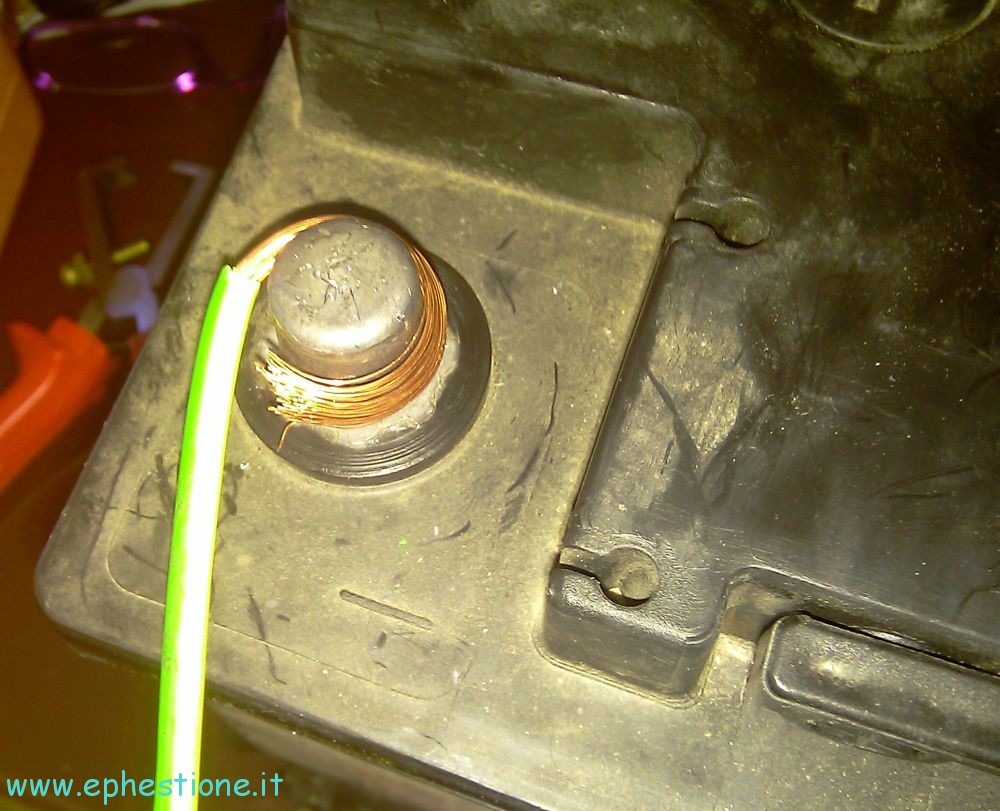
Nell'articolo "UPS con batteria per auto" che ho scritto in passato, diverse persone mi hanno criticato per come ho connesso la batteria. Questa volta ho usato dei cavi tre volte più spessi, e siccome non avevo morsetti da batteria, e non mi andava di acquistarli né smontarli da qualcos'altro, ho banalmente avvolto il rame del cavo attorno al polo della batteria. Brutto, ma perfettamente funzionale (provate a dimostrare il contrario). Di quella dimensione avevo solo cavi di terra, quindi li ho marcati con del nastro isolante colorato per distinguerli.
batteria macchina cablata
Sexy. Questo è il risultato finale: non avevo nastro isolante rosso, così ho usato il nero per il negativo ed il bianco per il positivo.
alimentatore 12V 10A 120W cablato
Il pannello dei cablaggi dell'alimentatore, il cavo bianco è l'ingresso dei 220V, i cavi di terra vanno alla batteria, e quelli grigi al carico (server + monitor lcd + modem/router + altre cose). Prima che cominciate a criticarne la bruttezza: non mi interessa, basta che funzioni e sia sicuro. Inoltre, anche se non è visibile nella foto, ogni cavo ha delle strisce ripetute di nastro adesivo bianco o nero per distinguerne la polarità positiva o negativa.

I risultati sono questi: ho collegato la batteria con l’alimentatore che teneva acceso il server e non c’è stato nessun problema; dopo di questo il wattmetro che stavo usando ha immediatamente iniziato a misurare un consumo inferiore, siccome la batteria per auto, carica, ha iniziato a condividere il carico con l’alimentatore da 12V. Con questa configurazione, è possibile staccare e riattaccare la presa della 220V in qualunque momento senza che accada nulla: il carico, l’alimentatore e la batteria sono in parallelo, per cui se la corrente manca, la batteria sostiene automaticamente tutto il carico.

Attualmente, il wattmetro continua a mostrare un carico molto inferiore rispetto a quello rilevato senza batteria in parallelo; mi attendo che questo salga progressivamente fino al valore totale, cioè leggermente superiore ai 42W (il consumo delle apparecchiature collegate, più una certa quantità necessaria a mantenere carica la batteria).


Cosa avreste cambiato, cosa vi piace, e cosa non vi piace di questo lavoro?

Questo è l’aspetto desertico del case tower (cortesia di qualcuno che l’aveva abbandonato vicino ad un cassonetto), ho spazio a sufficienza, e poi voglio che l’aria circoli liberamente all’interno senza bisogno di ventole.

Low power consumption server with integrated car battery UPS

I wrote in another post how I simply attached a car battery to a standard market UPS to give it even more juice; in that occasion, several users commented how I committed several shortcomings regarding the assembly.

Also taking into consideration that comments, this morning I rearranged the power supply of my home server to make it more silent and power efficient/independent.

On a side note, most comments were centered about me using thin cables to connect to the battery, with the reason that a car battery can deal a lot of amperes together, making a thin cable overheat, leading to possible fires. At first I credited them, but then I realized something, for which they should also get back to earth: we are not talking about shorting the battery leads for test purposes, but about using a day-to-day load, especially since it’s a low-power home server that together with accessories drain maximum 60W, which is 5amperes at 12V voltage.
Enter PicoPSU: you get a little toy able to give out up to 95W constant power (with my own model, but they make them up to 160W), which is 8amp at 12V. There is an 8 amperes current flowing through the cable running from the barrel connector of the PicoPSU… now please go and check the thickness of those cables. If those are enough for 8amps, how should 220v cable not be enough for 5 amps (tops, make it 4 on a regular basis)?

Back to us, my idea was to save the most possible on power waste, and have a silent PC that could sustain moderately long blackouts.

Ingredients:

  1. Your favourite hardware configuration for home server/automation (I bought a D510MO from Intel, with a dualcore D510 64bit Atom, put 2GB of RAM on it, a PCI DVR card, and a 2TB Samsung disk, the cheapest I found)
  2. A picoPSU power supply or something similar (I bought for roughly 20€ off the US a PicoPSU80, rated for up to 95W max, but I’ll need way less than that)
  3. A decent 12V power adapter, preferably fanless, that can manage the load you’re going to put under it, plus some more (mine came from China, but it’s ISO and CE compliant, and apart from the build quality which looks sturdy, it can take up to a nominal 120W load, that is 10A@12V)
  4. A car battery, must not be new, but should be able to hold its charge for a while, otherwise it’s pointless to use it

Here goes.

server insides
This is how deserted the tower case (courtesy of someone who abandoned it near a garbage can) looks, but it's fine, as I have the space, and I want air to be able to circulate freely inside without needing fans.
12v barrel connector on tower case
Detail: I used a pre-existing screw hole used to hold in place the old PSU, enlarged it with a drill, and fitted the PicoPSU barrel connector inside. Notice the thin cables coming out of the connector (those are apparently perfectly safe for 8amperes).

NOTICE: Be ABSOLUTELY careful when handling the following step: never, Never, NEVER make it so the battery leads are shorted together, or you will be in for a GREAT amount of PAIN, including, but not exclusively limited to: electric shocks, fire, tools welded to other tools or to the battery or to rings (NEVER wear rings or similar metal things on you while doing this). Additional word of advice: when connecting a cable, make sure the other end is either not naked, or if you removed the coating already, put a strip of insulating tape around it, you don’t want it to make contact around; this is especially true when you have both cables connected, as the naked ends may make contact between them. When you are about to connect the battery to the load, uncover a cable end at a time (first the positive, then the negative), and not both together.

car battery negative lead
In the "car battery ups" post I wrote, several people criticized how I made the connections to the battery, both plug-wise and cable-wise. This time, I used cables 3 times larger, and since I didn't have a proper car battery clamp, nor wanted to buy one/disassemble from somewhere, I just curled the copper wire around the lead. Ugly, but in the end it's as much effective as a regular clamp (try and confute). I only had ground cables that big, so who cares, I just tagged them with coloured tape to tell them apart.
cabled car battery
Sexy. This is the final result: didn't have red insulating tape either, so I used black for negative, and white for positive.
cabled 12v 10A 120W power adapter
The cable panel for my adapter, large white cable is 220V mains input, ground cables are battery leads, and grey ones are the load (server + lcd monitor + modem/router + other stuff). Before you go and start bashing me because it's ugly: I don't care, it works and it's safe. Also, it's not visible in this picture, but each cable has its own white/black tape tags to tell if it's positive or negative lead.

Results were as following: I plugged the battery leads while the ac adapter was already powering the server, and no problem whatsoever popped up; after I did it, the wattmeter I was using immediately went down quite some figures, as the charged car battery was sharing the load together with the 12V PSU. With this setup, I can plug in/out the mains plug with no effect whatsoever on the server: load, PSU and battery are all in parallel, so it 220V inlet dies, the battery takes all the load with no hassle.

Currently, the wattemer is showing quite a lower load, since the battery was all charged: I expect it to slowly raise until full consumption, which should be little more than 42W (full stuff load, plus something more to keep the battery charged).


What would have you changed, and what do you like/dislike about this mone-morning project?

Backup installed packages list in Ubuntu and restore via Synaptic

To backup your Ubuntu install you don’t just need to keep a copy of the /home folder (or partition), since you would still need to re-fetch all the packages you installed, and that can be time consuming, especially if you carefully chose the applications to add to the system.

Synaptic already offers a similar function, which is File > Save Markings As… (be sure to fill the check box “Save full state, not only changes”, otherwise you will be probably getting a 0byte file). You can then use the File > Read Markings function to restore the package list on another system/install.

What’s the deal with this? The function actually saves indiscriminately a list of all the installed packages, including those that were installed just because they were a dependence. For example if you sudo apt-get/aptitude install packagename you will probably install also packagename-data and packagename-core or something along those lines, as they are dependencies of packagename, but the dependencies may be more complex and deeper (for example, packagename-core may also require other packages in turn); dependencies can change over time, so if package A requires package B today, a month from now that may be not true anymore; so if you passively restore the whole packagelist, you would be installing package B even if that’s not needed anymore.

The solution is to save a list of only the “main” packages, which will in turn require the correct dependencies; this can be achieved with:

aptitude search "~i ?not(~M)" -F "%p install" > packagelist.txt

This saves into packagelist.txt the list of the installed packages (~i) that were not installed automatically (not(~M)), mantaining the same format of the list generated by Synaptic, that is “packagename install” in each row, so you can seamlessly import it from Synpatic.

Zoneminder can’t chmod /dev/videoN, operation not permitted, and not starting at boot

Zoneminder has reached its current peak with version 1.24.2 since quite some time, so you can finally get it off the official repositories of Ubuntu, instead of finding then the older 1.23 as it was at the time of Jaunty, when you had to compile off the source.

Running configure and make install comes with the added benefit of making you feel nerdy, but it’s still a pain, and why doing it when you can download a deb to install it automatically?

So well, when I installed off the repos in Lucid everything went fine since the beginning, I only had to load http://localhost/zm in Firefox to get it going.

This time after upgrading to Maverick (on a new hard disk, so new fresh install), I instead faced some errors.

First I couldn’t get to the console URL, but this thread at UbuntuForums gave the solution:

sudo ln -s /etc/zm/apache.conf /etc/apache2/conf.d/zoneminder.conf

to create a link between Apache’s configuration file and Zoneminder’s shipped one, and then

sudo /etc/init.d/apache2 reload

to have Apache refresh its configuration from said file; after this, the console’s web GUI can be reached under the /zm subfolder of the webserver root.

Then, I had another problem where the sources appeared red no matter what; enabling debug I found an error relating to zmfix not being able to apply a chmod on /dev/videoN, since the operation was not permitted. Manually doing:

sudo chown www-data /dev/video*

and restarting zoneminder with

sudo /etc/init.d/zoneminder restart

solved it, but didn’t survive a reboot, as the ownership of /dev/video* goes back to root:video.

What did it for me was a:

sudo adduser www-data video

as suggested in this topic on ZoneMinder forums.

So this solved the operation not permitted error, but I was still getting an unresponsive ZoneMinder console after reboot, the status was reported as “Stopped”, and after manually starting it all went fine; there had to be something preventing ZoneMinder from properly and automatically start right after first run, so searching I found a tip in ZoneMinder Wiki, that suggested the problem lying in Ubuntu starting ZoneMinder so soon that MySQL wasn’t ready yet; delaying the start of ZoneMinder solves this, so you just need to add

sleep 15

before

zmfix -a

in the ZoneMinder startup script, which is, in the standard repository installation, /etc/init.d/zoneminder

Enjoy your videosurveillance!

sudo /etc/init.d/apache2 reloadsudo /etc/init.d/apache2 reload

Appia e Grande Raccordo Anulare, un giorno di ordinaria follia a Roma

Ho la fortuna (ed oggi mi sono reso conto di quanto è grande questa fortuna) di lavorare a distanza di passeggiata da casa (se farsi 1km in ripida salita al ritorno, con borsa al seguito, si può considerare passeggiata, ma se non altro fa bene alla salute).

Oggi, per un concorso pubblico, mi sono messo in viaggio verso Tivoli, e per problemi alla macchina ho ponderato di fare due cambi con i mezzi pubblici, anche se all’ultimo momento ho trovato una macchina in prestito… non l’avessi mai presa!

Conoscevo già la situazione mattutina sull’Appia, che -per quanto mi riguarda- è particolarmente intasata nel tratto che scende da Albano Laziale verso Santa Maria delle Mole (e tutto grazie a tre giganteschi incroci regolati da semaforo che nessun santo in cielo decide di trasformare in rotatorie… come se l’Appia Bis servisse a risolvere qualcosa, oltre ai mutui per le ville e le Cajenne degli appaltatori), ma il raccordo proprio non me lo sarei aspettato così. Appena imboccato il GRA ho trovato un traffico relativamente pesante ma scorrevole, che si è improvvisamente impantanato all’altezza dell’Ikea ad Anagnina, “un impasse che si risolverà tra poco” ho subito pensato, peccato che il “tra poco” è diventato “tutto il raccordo”. Per arrivare da casa all’uscita su Via Tiburtina ho impiegato un’ora e un quarto, di cui gli ultimi dieci minuti trascorsi in fila nella corsia d’emergenza per uscire dal raccordo: una media di 28km/h dalla partenza; sulla Tiburtina il traffico a passo d’uomo è proseguito fino a poco oltre gli studi Mediaset della Titanus, dove c’è un incrocio, ed è ripreso solo a Villa Adriana poco prima di Tivoli.

Concludendo, “poco male”, ho speso del tempo, ma soprattutto tante energie vitali, in un singolo viaggio andato male, e l’incubo ormai è finito, ma mi spaventa pensare che ci siano così tante persone che OGNI GIORNO fanno quel tragitto in quelle condizioni (perché non credo che sia stata una enorme coincidenza che si siano messi in macchina tutti oggi, e che diamine). Per queste numerosissime persone scrivo una brevissima lettera aperta:

VOI SIETE TUTTI PAZZI FRACICHI!

Ma che ci stanno a fare i mezzi pubblici? Poi ci credo che la cronaca è piena di omicidi e aggressioni occasionali… tutta colpa dello stress da traffico.

Dovessi per puro caso ottenere quel posto, perché magari i raccomandati hanno tutti di meglio da fare, di sicuro mi alzerò la mattina alle 6 per arrivare alla stazione Termini e poi salire su treno per Tivoli da Tiburtina, perché col cavolo che ci torno in auto.

Qual è il vostro passatempo preferito sui mezzi pubblici? (per me, guardare telefilm sul cellulare)

O qual è la parolaccia che dite più spesso in mezzo al traffico? (censuratela al bisogno)

Pulire lo scarico centrale della Rover 75 e asciugare la centralina

A Cesare quel ch’è di Cesare: questo articolo è stato ispirato da questa discussione, dove le istruzioni sono in realtà per i modelli britannici della Rover 75, che apparentemente consentono un accesso più semplice al buco di drenaggio; ho colto l’occasione per replicare il tutto in maggiore dettaglio per i modelli “normali”.

area centralina elettronica
Questa è la zona dove si trova la centralina (ECU), "aperta" così come la avrete alla fine di questa procedura.
griglia in plastica rover 75
Sollevato il cofano motore, trovate la griglia in plastica lato passeggero che va rimossa, agendo sui rilasci indicati dalle frecce rosse.
istruzioni accesso centralina.
Potrebbe sembrare complicato, ma basta seguire i passaggi: per prima cosa rimuovete le viti/tappucci cerchiati di rosso, quindi sfilate dal bordo metallico la guarnizione indicata dalla freccia azzurra, alzate verso l'alto la cornice di plastica che reggeva la griglia che avete appena rimosso, e sfilate nella direzione della freccia verde il pannello di plastica con le "grondaie" per l'acqua.
Rover 75 filtro polline centralina
Indicato in arancione è il filtro per i pollini, in verde la scatola di plastica contenente la centralina del motore; entrambi si trovano in una camera riempitasi di acqua piovana accumulata in chissà quanto tempo.
Rover 75 foro di scarico centrale
Non sono riuscito a scattare una fotografia decente per riprendere l'acqua sul fondo della camera, ma c'erano 15cm buoni di acqua piovana accumulati sul fondo da questo lato (la macchina è parcheggiata in pendenza); è possibile vedere l'enorme quantità di foglie e semi di pino (ce ne era una catasta intera prima di sturare il tubo).
rover 74 ecu
La scatola della centralina una volta aperta; ci sono 4 gancetti a clip indicati dalle frecce rosse; non fate come me, e prima di soffrire le pene dell'inferno per provare ad aprirle nella posizione in cui si trovano, fate scorrere verso l'alto la scatola per avere un accesso migliore.
Asciugatura centralina
Ho steso una prolunga, collegato un asciugacapelli, ed ho soffiato allegramente sulla centralina, anche se il problema delle lancette di temperatura e giri motore, aria condizionata e lunotto termico, tutti morti, non si è ancora risolto...
tubo di gomma
Capitan Uncino ha convinto il Sig. Inutile Tubo di Gomma ad uscire dal suo alloggiamento.
tubo di gomma tagliato
Tubo allo spiedo, dopo essere stato operato per rimuovere la punta a becco di flauto; è possibile ora reinserirlo in posizione, o anche no (io ho preferito evitare).

Chiudo questo articolo pubblicando i miei sentiti ringraziamenti alle cordiali persone che lavorano alla Rover per aver deciso di piazzare una centralina elettronica in una camera dove viene raccolta l’acqua piovana che dovrebbe scorrere via attraverso un tubo a becco di flauto.