Maybe I’m posting about nothing new, and if that’s the case, I beg your pardon. Not.
’tis my website and I can write whatever I like.
Anyway I just completed the update of Ubuntu to Maverick Meerkat on my laptop, and well, I was trying to get to the desktop with the good old Ctrl-Ald-D combo, but it didn’t work. Hammered those keys at least 5 times to make sure, but then my lateral thinking suggested me to do WinKey+D instead (the combo I tried the very first time I used Ubuntu), and that worked!
So I went into a Windows Key frenzy, and tried, like, every combo I could test.
Here are my findings:
WinKey+W, WinKey+A
Show all windows in a tiles fashion
WinKey+D As I said, goes to desktop
WinKey+Tab A very cool version of the Alt-Tab
but here are the cool ones:
WinKey+MouseWheelUp/Down Zooms in/out the whole screen, moving the mouse shifts the view, and WinKey+MouseWheelClick Zooms in all the way
WinKey+M, WinKey+N Negative colour! Useless for practical uses, anyway the N combo renders negative only the currently active window space, while M makes negative everything onscreen.
Ah, solar power. The tingly feeling of getting free energy and saving the environment.
My HD2, the HTC phone/device I own at the moment, has its own reserve of four batteries to switch in case I need to make an intense use without a mains plug handy, yet I wasn’t satisfied as I didn’t have a renewable source of energy for charging it if those batteries died altogether, namely a decent solar panel; let’s face it, the solar chargers you see on eBay simply suck, they are built around teeny tiny solar cells capable of maybe 40mA @ 5V, and actually have an internal battery which does all the job, and that you’re supposed to charge at your mains at home before going out, because the builtin panel is going to take a couple of days in full sunlight to fill that battery, let alone being able to charge both backup battery, and phone battery, while you’re using your phone, which is actually the ideal usage scenario, as you’re going to need the backup battery when there is no sun, during the night.
My first attempt at building a solar charger was by using a 1W (5V@200mA) solar panel, that was exactly the same size of my HD2, but wasn’t enough in my opinion, since movie playback takes more than 200mA for itself, and there is nothing left to charge the phone. So I have that one set aside (and for sale, if you’re interested), but then I discovered this solar panel that outputs 700mA@5V, obviously bigger, but that is what I needed to playback movies, and at the same time charge both the phone battery and the charger internal backup battery.
So this page is a chronicle of my experience, and a DIY tutorial about building such contraption with the smallest expense possible.
First of all, the shopping list:
Digital multimeter to check the project as it develops, to avoid discovering any mistakes when it’s too late
Soldering iron
Hot melt/hot glue gun, you wll be using at least a full stick of glue
Solar panel (obviously), the bigger the better. You need a 5V model (higher voltage models are fine only if you add a voltage regulation circuit which I am not going to cover in here), and buy the one with the biggest current rating available, my 700mA one is pretty impressive in itself but you may be able to find better. You can go with lower output, but then it makes no sense to add a backup battery because it won’t be powerful enough to charge everything
“Naked” female USB-A port, you can easily take it out off an old, not working motherboard, or hub
Electrical wires, preferably in the standard colours red and black, but as you can see I used white and green since I only had those spare, as long as you remember which colour is which polarity (in my case, white is positive and green is negative)
Two Schottky diodes (to stop the backwards flow of current to the solar panel and from the solar panel to the battery; you don’t need to buy them, just desolder off an old motherboard, an old phone charger, whatever
A LiIon battery, my choice fell on a 18650 “Ultrafire” 3000mAh battery, but anything 3.7V with decent capacity is ok, really
A protected charging circuit (a circuit that takes a variable voltage input and outputs static 4.2V, and has “flowback” protection, I got it by disassembling an OEM desktop charger for my old Nokia batteries); in alternative, just buy a “protected ultrafire”, costs more but delivers both things in less the hassle; in this case you will need just one diode.
Here is the step by step photoguide:
This is the panel I bought, roughly 16x16cm, big, but a little powerhouseThe Li-Ion battery I bought, it's a 18650 stylus battery, 3000mAh capacity, more than double of my own phone's batteryFront of the internal board I took off a desktop LiIon chargerThe rear of the charging board, I soldered my own wires, I can still use the nokia small plug to power it; later I also soldered new wires for the battery outputThe polarity of the USB-A connector; for it to be recognised as a charger, you need to short circuit the central pins, that are usually for data, by tinning them togetherThis is the sexy hand-drawn electrical scheme of the whole charger; after drawing it, I realized that the diode marked in red is not necessary, so I wasted one piece of electronics, no big deal; UPDATE: there is a diode coming out of the positive pole of the battery, this is to prevent direct-flow of current into the battery from the solar panel, so that the battery is charged only by the protection circuit. If you use instead a protected UltraFire, the battery will be directly in parallel to the panel, so you won't need any additional diode.This is the basic version of a solar charger, without battery backup system, it gives 5V output from the USB port blocking back flow of the current inside the solar panel with the diodeYou can see through the hot glue how the diode is soldered; it comes out of the positive pole of the panel, and the white stripe is located on the far side from the panelHere I added another diode thinking it was necessary for the back flow protection to the backup battery charging circuit (which happens if the battery poles go back into the power input of the charging circuit, in a failing attempt of the battery to charge itself); anyway, the first diode is enough to prevent it. The soldering stinks and I know it.I was able to tin the wires to the negative pole of the ultrafire battery, it's not very solid but a little hot glue helped outHere, a slab of hot melt glue on the negative pole, to keep the tinning in place and isolate itI literally wasted half an hour trying to tin the positive pole of the 18650, with no luck; in the end I devised this ugly spring, by attaching a small piece of metal to the wire......and then applying it against the positive pole and keeping it there with hot melt glue... it worked!After sticking all the components to the rear of the panel (I used more than a stick of melt glue) this is how it looked likeThis is how it looks from the front... nothing different, you can barely see the led and usb port on topThis is a close detail of the area where the charging led and USB port lieThis is the reward for the hard work: solar panel at sunlight (not direct sunlight but enough); you see the detail of both the charging led being lit green (which means the charging circuit is powered by the solar panel, and the backup battery is fully charged, otherwise while charging, it would be lit red), and the HTC HD2 with the lit orange charging led
UPDATE (9/29/11): several visitors asked me how to change the procedure in order to build a vanilla solar chager with no backup battery; easily done: take the circuitry scheme above, ideally remove the part regarding the battery, the charging control PCB, and the cables coming and going to these, and you’re set.
UPDATE (11/4/11): mpigio in the comments pointed out a serious flaw in the electrical scheme: the protection circuit was useless, since the battery was directly in parallel with the solar panel; I just added a diode coming out of the battery, so this is finally safe.
On a side note, as other pointed out in the comments, instead of digging for a recharging protection, you may just buy a protected 18650, that is a battery that has its own integrated protection circuit.
UPDATE (11/9/11): adding here something I needed to clarify in the comments more than once. Obviously, with no sun whatsoever, it’s the backup battery that gives the output voltage: this will not be 5V like a normal USB port, but at max 4.2V, and down to 3.7V or even less. Now, most devices should still consider this as a valid charging voltage (my HD2 did) even if for technical reasons they won’t charge up to 100%, but someone in the comments reported about it not being enough for a GPS navigator, which didn’t consider enough even the 4.8V that four 1.2V AA rechargeable batteries in series gave; in this cases it’s needed a voltage regulator (of the “boost” or “step-up” kind) that can take lower, variable voltages and always outputs 5V, so you can connect it to the USB port. This component should be safe to be the last and only one connected to the USB port, so that both solar panel and backup battery converge into it, and only a regulated, constant 5V output is given from the port.
With this setup you can charge anything which has a USB charging cable, be it iphone, ipod, ipad, mp3 player, every htc phone… you can even attach a USB hub to it if the panel is powerful enough, and charge more than one device at the same time!
Since the desktop charger had its own charging plug, I can use a standard Nokia charger to charge the backup battery.
Just got tired of how the images inside my posts didn’t get centered, but instead were aligned to the left, even if I had set them to be centered, and they were rendered to inside the WordPress WYSIWYG editor.
I use the Arclite theme, which lets you add personalized CSS styles inside the settings, but I guess you can use other methods to do the same with your them, or add them manually if it comes to that
HD2, great phone, really. Shame it’s not dualsim, and no wonder there are people wanting to make it work with two different mobile numbers. Same thing did I, and this guide is to recount my findings, especially thanks to the italian member mannyy at XDA forums.
First things first: do NOT buy the insanely expensive adapters you find on the internet, it would be plain stupid to spend 70 euro on a little piece of plastic, when a full-fledged dual sim chinaphone with TV, radio, camera and bluetooth costs less than that.
There are two kind of dual-sim adapters on the market, no matter the brand, the “cutting” and “no cutting” versions, where either you have to cut the chip out of the SIMs to insert the in a single adapter, or you plug both integer SIMs into a bigger one without having to cut anything. The adapter I bought off ebay (the auction has been cancelled in the meantime, but you can find it from chinese shops on the internet) is the Magicsim “iphone 3g dualsim” no cutting, but I also own a Magicsim 23th-A cutting, which I have been told by mannyy at XDA that works correctly on the HD2 as well; the 26th should work as well.
This is the MagicSim iphone 3G dualsim; I spent 8USD something on it, including shipping from ChinaPeeled off the cover from the adhesive strip, adapted both SIMs, this is how the MagicSim fits into the HD2Interior of the metal back cover of the HD2; I marked the areas where the second SIM, and the chip, overlap the embossed metal frame, hence you cannot close the cover; you will need a diamond bur mounted on a dremel, or equivalent, to drill out those parts of the frame
As you can see, I didn’t actually drill the cover interior… in fact, in the end I avoided using the dual sim adapter at all, because I use my “SIM1” for my job, and since it goes offline when I switch to the other SIM, I’d rather not lose important work calls while I’m doing personal calls, this is why for the time being I will keep using a second phone for that.
Now, onto the operational part.
Main menu of the dual sim adapter; just tap on either SIM1 or SIM2 to switch between them; the one with the asterisk is the currently active cardThis is the second level menu under "Dual mode"; make sure you have "STK mode" selected and DO NOT activate 007 mode
WARNING: DO NOT select 007 mode from the Dual Mode menu!!
007 mode is very useful in those phones that support it, since it doesn’t replace the SIM card menu, and you can switch between the SIMs by dialing either 001 or 002 and then hanging up, which is undoubtedly faster than going everytime in the menu; to disable 007 mode, you’d have to dial 007 and then hand up, and the STK menu will be back. Yet, the HD2 does NOT support 007 mode, you will get stuck into it and will not be able to disable it nor switch between SIM cards, so if you are silly enough to activate it even after reading this, there’s a way that worked for me: put the adapter inside another phone, and try disabling it by dialing 007, calling and then immediately hanging up. For me it didn’t work with a Nokia 3310, but it worked with a Nokia 7210, so I could disable it succesfully. I also wrote a mail to MagicSim support, and Cindy from their support (I always wonder why chinese people working in helpdesks always have american names) sent me a documentation doc, which says to create a new contact in your phonebook, called 007 and with number 007, and then save it to SIM memory (not phone memory), and it should switch off 007 mode and go back to STK mode.
Another method contained in that DOC file, was to switch from 3g mode to GSM mode in the phone settings, and reboot the phone, then the STK menu should reappear… but in my case, I already had 3g disabled.
Make sure that "Not connected" under "NO. Hide" is disabled, like this
Another detail to keep in mind: I do not have any data plans on my phone, so I have 3g disabled, to save battery, hence what I’m going to say could change for those with 3g enabled. Under the “NO. Hide” menu, make sure it says “Not Connected”, instead of “*Not Conneted” (in other words, there must be no asterisk). If I enable that (asterisk shows), when I switch between the cards, the phone sayd there is no SIM card, and cannot complete the switch, and I have either to reboot the phone, or activate and deactivate “Airplane mode” to reboot just the radio. If instead I have no asterisk under this option, the switch between SIM cards completes succesfully in about 30 seconds.
Disable Automatic connection network setup
Now, the next worst problem I faced, is that whenever I switched SIMs, the phone automatically started the network connection setup with my mobile carrier; I do not have any data plans, so if the phone has the ability to connect to the internet via the SIM, it means I waste a lot of money, so what I did before, once per ROM flash, was to wait that the connection setup finished, then go into: Manila settings > Wireless > Menu > Connections > Advanced tab > Network selection
and from there make sure that both entries read “Office network”, that way the Edge/3g connection of the SIM card is never used and I don’t waste money.
Yet, when you continually switch between the cards inside the dualsim adapter, the auto connection setup always kicks in, and other than a bother to the eye, it also compells you to go into that wireless settings loop each time to select “Office network”. Not feasible. You need a way to disable altogether the network setup wizard.
EDIT (28th Sept 2010): you can ignore the last paragraph of this guide, I was overdoing it; member xlr8me at XDA found the “easy” way: from Manila settings, open the Communications Manager, then Data Connection, and from the menu button untick the “auto-configuration” line.
The app that configures the network is /Windows/ConnectionSetupAuto.exe, which you cannot delete/rename, because it is in the ROM, so unless you want to cook it out of the ROM yourself, all you need to do is make sure nothing runs that exe, no matter what. A quick repulisti of the registry did this for me: I used DotFred’s Advanced Task Manager registry editor, searched the WHOLE registry for values containing the string connectionsetupauto and made sure to delete whatever upper folder contained a key with a value matching that search, TOGETHER with the other keys contained in that upper folder; quite harsh I agree, but it worked for me, so I am not going back. Another more conservative way would be to manually change the paths inside the keys pointing to that exe file, by adding, for example, .off at the end, but as I didn’t test it, I cannot really guarantee it will work.
Sacrifice was one of the first “decent” games I ever played on my first ever “decent” PC 10 years ago or something. Lately I installed it with Wine under Ubuntu on my Satellite laptop and wanted to revamp an old and undying, clever classic.
I went all-Stratos, as I remembered he was the subtle evil of the group, and tingled the most my curiosity (my first run years ago was a mix of Persephone, James, Stratos, Charnel, and maybe Pyro as well, I wanted to try them all), and I remember I had to cheat my way out of the last couple levels as I couldn’t really beat them well enough; having grown in the meanwhile, I also developed more of a “strategic mind”, and having beaten the 9th level without much difficulty, I wanted to give a try with Marduk (the toughest scare being the fact he can steal your souls without using convert and sac doctors).
The general strategy that worked throughout all the game for me was:
build manaliths near your altar
guardian the most creatures you can summon around them
eat away the enemy’s souls as they attack you wave after wave, until you have enough stock to launch an attack yourself
Stratos’ ranged one-soul attackers are Sylphs, and I found them to be overkill in any kind of situation up to level 8, just summon full 12 groups of them and attack, you deal a lot of damage before the enemy can even reach you. I needed tougher fighters only to overcome the enemy manaliths closer to the altars to desecrate; guarded Sylphs have been especially useful until level 9, but they are simply too weak against Marduk’s huge waves, and there’s too many souls scattered around when they die, to gather before they are stolen.
So I summoned and guarded a Silverback for each manalith close to my altar, and with the remaning 2 souls I guarded a Storm Giant. That, together with wise use of Tornado and Cloud Kill, made me erode little by little Marduk’s souls, until he hadn’t any more spares to attack me with, and stopped coming to my altar at all.
When Marduk doesn’t pay any more visits, you know you can launch your own attacks on his manaliths, given the proper army; I only went around with Silverbacks guarding my back, casted Tornado+Cloud Kill on his altars, and as soon as the lightnings from Cloud Kill went off I launched my Silverbacks to kill the forces still alive; up until the latest manaliths, you can actually convert the souls without Marduk even showing up, I reached a small army of 11 Silverbacks with me, just make sure you make them flee as soon as Death is casted.
I surprised myself with how simple this strategy is, I remember that even cheating 99 souls on my deck last time I played, I still had problems winning, while this time Marduk was rendered unoffensive pretty soon.
I am not going to argue with you regarding the reasons you may want to record your incoming or outgoing calls, nor how it is illegal or only partially legal in some countries.
There are a couple of issues with full duplex phonecall recording on the untouched HD2:
the other person’s voice is very faint and totally unhearable when speaking in loud environments
the recording stops after a minute or so, and longer phonecalls are cut after that delay
The reasons for this are
the sound for the third party is not recorded directly, but only what comes from the speaker through to the mic is hearable
the device enters a sleep mode after a certain delay when in a phonecall, so anything which is not radio related is shut down
The main concern until a while ago was the first problem, the second being addressed by a pre-existing registry hack by I don’t really know who (I’d be happy to credit them, but XDA member shinoby_uk only released a CAB of those pre-esisting hacks, so he is not the real author); this neverending issue (which in time led some people to think that it was a hardware limitation, while I’ve always believed in the hidden software switch) has been solved (according to the XDA member who published the solution) by 4pda.ru member RekGRpth; the existing registry hacks that were released by XDA member mskip (if I am not wrong) and worked for previous HTC models, are still needed, even if are not sufficient by themselves to enable full recording.
So here is the complete list of registry keys to add/modify in order to enable full 2way incall recording on the HD2:
Once you have done so, you are still not done, as you will need a program to actually record the calls; the one I use is the simple but deadly efficient ACR by XDA member slothie.
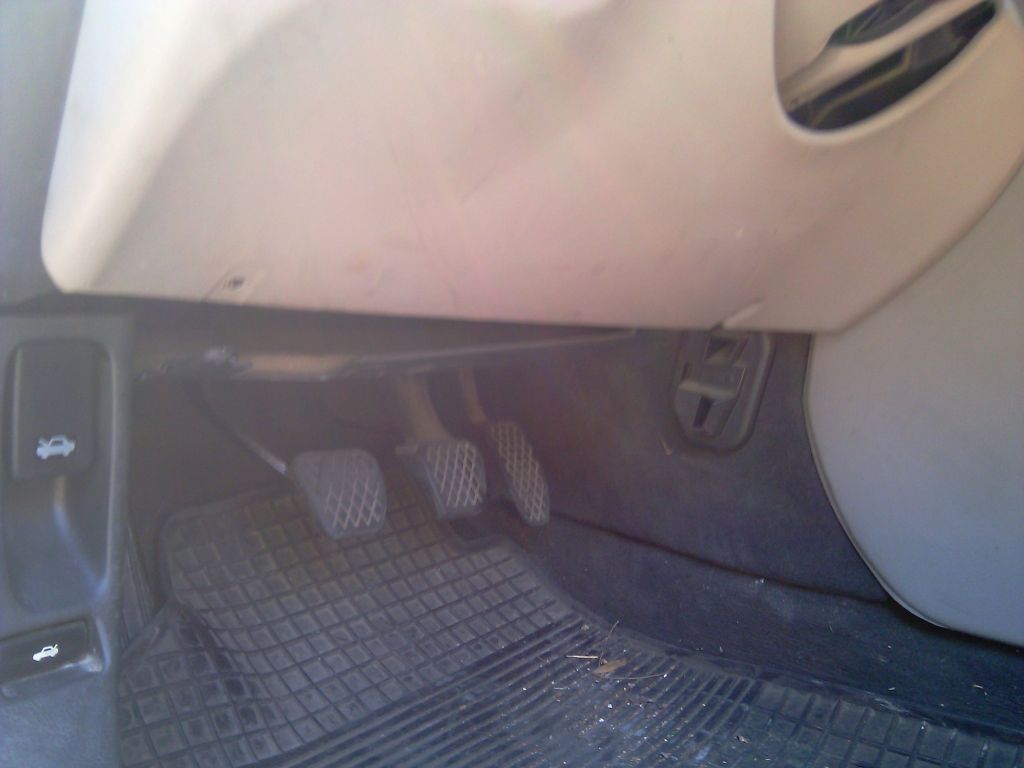
I was laying cables for parking sensors to be used with the Rover 75 ride I got free of charge from my father. Running them from the holes in the bumper to the engine compartment was no big deal, but connecting the main unit under the bonnet to the display in the passenger compartment was a little harder, since I needed to find a way to run it through cleanly enough.
As improvisation goes (and as my father wanted to do himself) you would be tempted to use, somehow, the cable tubes that you see right in the middle of the rear wall of the engine compartment, but that’s gonna be a hard task. On the other side, if you don’t need to run really big cables, you can use a small hole which you can find on the right side (looking toward the engine, and on my car which has the steering wheel on the left of the cockpit) under a plastic grid you have to remove first.
view of the side of the engine compartment where the hole is located
You have to pull out a waterproof rubber neck that’s fitted around another rigid cable passing through there, to free up enough space to actually run your wires through.
Closer view of the hole and the rubber waterproof protection already pulled out
Then you have to access to the cockpit side of the hole.
this is the area where you will be accessing the cable ran through the under the bonnet hole
There is some unscrewing to do here
unscrew both the screw you see in this picture and the one on the opposite side of the panel
Once you remove the screws, you need to pull the panel out, and if you want a more comfortable working environment, also pull out with a discrete force the front panel where the lights switch is located to free up a larger area.
This is the panel pulled out of its place. You can also pull out the beige frontal panel under the steering wheel if you need to.
If you are in a well lit ambient, you should now be able to see the cable probe (or whatever that’s called in english) passing through the hole you just freed
this is how the hole appears from the inside of the cockpit if you look carefully enough
Let the cable(s) pass on the side of the panel you prefer (door side in my case) and then screw the panel back in place, after reinserting the frontal panel under the steering wheel if you pulled it out.
After having played Starcraft II on my Windows 7 desktop, yesterday I was trying to get the first Starcraft to work on my laptop under Ubuntu Lucid with Wine; the wine-hq website reported the game as perfectly working, and in fact I only needed to install a patch to let the game start without the mounted CD, but no matter if I tried to play with original Starcraft or the Brood War expansion, I always got random freezes: the game just hung up after a while, it freezed either on the menu or in the playing screen, the cursor wouldn’t respond anymore and all the screen stopped; the audio seemed to be fine though, because sound kept on playing.
I tried changing almost everything under wine configuration, enabling windowed mode with virtual desktop or disabling it, enabling or disabling hardware acceleration and all the other checkboxes under “Graphics” tab. I tried setting up the audio driver… no matter what I did I still got the random freezes.
Until I tried adding a couple of registry values that were reported in the Wine forum for that game but weren’t apparently addressing this particular issue.
Anyway, after adding these keys, I was able to end the first level and go through almost all the second one (time for lunch now) without a glitch, except for the occasional sluggishness.
Run wine regedit and add these couple values under:
I am (at the date of writing) the proud owner of an HD2; given its limited 1200 something mAh battery, and my precaution of always having a spare battery for each of my devices (even if now, with the HD2, I got rid in one swoop of mobile phone, PDA, compact camera and bluetooth gps receiver, and this is pretty much my only device, excluding my DSLR which I rarely bring with me), I went a little overboard and bought three spare batteries, which I charge with a mains charger and then swap out periodically.
Just now I became curious to check the uptime before the battery reaches 10% (at which point I take it out for charging), because I never really remember how long it has been since the last battery swap.
I dug a little, and the registry key that stores the uptime since last boot is
HKLM > System > Uptime > Clock
while the uptime since last battery swap (appears to become 0 when you take out the battery, and is not reset after a simple reboot) is
HKLM > System > Uptime > ClockSession
These keys contain a time interval expressed in seconds. Divide it by 60 twice, and by 24 once, and you get the uptime in days (and fraction of day). They have been verified under WM 6.5.X, yet there is no reason they shouldn’t work in not-so-older builds of Windows Mobile too.
On another site I manage, I just switched from the previous forum script to PunBB; one feature I missed after the switch is the ability to activate an email notification for each and every post the users add into the forum, so I had to write my own.
Following is the source code of the extension, save it as manifest.xml, upload it into /extensions/newpost_mail_notify/ PunBB folder (or another name of your liking), and install from PunBB admin panel with the usual method. There is nothing to set, as long as the extension is active it just does its job.
<?xml version="1.0" encoding="utf-8"?>
<!DOCTYPE extension SYSTEM "ext-1.0.dtd">

<extension engine="1.0">
<id>pun_newpost_mail_notify</id>
<title>Send email to admin for each new post</title>
<version>1.1</version>
<description>This extension simply sends an email to the configured admin email address everytime a new post is added by someone who's not the configured admin</description>
<author>Ephestione</author>

<minversion>1.3.2</minversion>
<maxtestedon>1.3.4</maxtestedon>

<hooks>
<hook id="po_pre_redirect"><![CDATA[
if ($forum_user['group_id']!=1) { //default admin user id
$notification_to=$forum_config['o_admin_email'];
$notification_subject='['.$forum_config['o_board_title'].'] New topic/post notification';
$notification_message='New post/thread at URL: '.$base_url.'/viewtopic.php?pid='.$new_pid.'#p'.$new_pid;
mail($notification_to,$notification_subject,$notification_message);
}
]]></hook>

</hooks>

</extension>
This extension is very spartan, it will send a mail to the preconfigured admin email address, only if the new post is by someone else than the admin (obviously), with a simple link pointing to the post in the board.
I just updated the code with the suggestion by Grez from PunBB forums, correcting the check on the user which now uses the group_id and not the user id, thus being more solid.
Disclaimer: not my fault if your server explodes, this extension has been made/tested for PunBB 1.3.4, and if you’re not using that version you should definitely upgrade; may be a bad idea to use it if you get a lot of posts each day; I needed it because my forum is not so active, so I prefer getting notified if there’s something new, rather than go checking everyday.
The headquarters of Ephestione, online since 2001 ______________________________ ________________ _________________ Il quartier generale di Ephestione, online dal 2001