How to install configure and manage an FTP server

2008 notice: up to date, the most complete and freeware FTP server is FileZilla. I do not have time, will, and resources to re-edit the whole guid to this software, anyway you can follow the same basic principles to setup a server

This is dedicated to all of you who would like to share with others their files, such as MP3’s, Movies, Pictures, FREE Programs, and… well whatever else you think it is a good idea to share .

Since there are many different FTP Server softwares out there, and as happened for FTP clients, some of them are free, I’ll put in here a tutorial on how to start from scratch with a free one (for instance WarFTPDaemon, which is, if not the most userfriendly, at least the most powerful; I’ll put available for download also GuildFTP, which instead is quite nice graphically, plus offers a very flexible interoperability with mIRC). Visit the Dowloads/Internet section of this site to get the installers.


Install and run the thing.

Let’s come to the tutorial itself.

This is how appears the server’s console when you start it. We’ll explain what to do step by step.


After the server is installed and running, we’ll have to set how many people can login, what port the server will be listening on, blah, blah, blah.

You have right now the chance to change the port the server will listen on, just put another number in place of 21 (the IP near the port can’t be changed, it logs your IP when you’re connected, and is 127.0.0.1 when you are offline). You can use virtually any numer, but avoid to use 23, 25, 80, 110, 139, which may (actually in very rare cases) interfere with your current other running services, and in general, choose with no problem any number from 1024 to about 65000. Then, the max decent number of users, unless you are on a T3, is 2 max for a 56k, even 3 for a 64k ISDN, 5-6 for a 128k ISDN, 8-10 for an aDSL, even a bit more for cable users. But still it’s your choice, the more users will connect at the same time, the slower they’ll go .

Next, you need to set users. One choice is to make an account for each person you want to access the server, asking them what username and password they prefer; or, if you, for example, serve songs in an IRC channel, it is much better to create a single account, with a standard username/password, like channelname/napstersux0rs (hey ’tis just and example ). Then you need to set the folders each user will be able to access, and what rights will have in those folders.

Reach the Edit User dialog by doing [Properties > Security > Edit User…]. You add users by pressing the Add button in the User panel side, then specifying a username (case sensitive), and a password (also case sensitive; you’ll be asked to retype it for security purposes; in this case, the login was ID:John PSW:Smith). Then switch to the File Access panel from the Security one. This is how you should set the (default permissions), that is, everything is disabled by default, you’ll specify for each folder if it is accessible or not.


And this is how you should set the parameters for the shared folders. To add a shared folder, press the Add button in the File Access panel side, and a dialog to choose the folders will appear. The Read right is to enable the download of the files. Uncheck the Write Delete Execute rights, to avoid l4m3 users from messing on your HD via FTP. The List (dir) right is to allow the user to see the folders he can access. Disable Create Remove to avoid a user from messing, as I told before. The Root and Home attributes are used to make the user automatically access the selected folder when he logins. If you want a login for each user, just keep adding them from scratch, till you feel you have enough accounts. When it is really all done, press the OK button in the upper right corner.


When you setted the user parameters, you need to adjust the overall server options, by doing [Properties > Options]. I won’t paste in here a screenshot for every panel, since you can follow the instructions by reading in here, and also because this page would get simply HUGE to download. So, you have the [Options > General] panel in front of you. I suggest you to enable Go online when started and minimize so the server, will be there ready to act. The rest if left to your will, only remember that selecting Advanced. Please enable all options you’ll find the Edit User panel a but more messy. Just use this option when you’ll become more acquainted with the program .

Switch to the Server Name panel (we can ignore for now all the other panels, which control the advanced options, and are not supposed to interest a first time user). In that panel, put a nice name for your server, like "FrAnKiE’s FrEe FoR AlL FiLeZ SeRvEr", and if you want insert your email, or leave the invalid default one.

This is done! I mean… almost… actually the two great capabilities of WarFTPd are folder mapping, and especially the Virtual File System. Since you can now start sharing your files, you can avoid reading further. But if you want to add more folders located on different disks/partitions (for example one with songs, another with pictures, another with programs and so on, and also a folder to let users upload files to you) it may be VERY useful to activate the disk mapping (I’ll avoid explaining how to use the Virtual File System, both because it should be used only by advanced users, and beacuse… err.. well… I still gotta fully understand how it works … but hey! I had to learn WarFTPd JUST to write down this tutorial!).


Now, let’s make an example: you have all your songs on the partition G:\, some pictures in F:\Docz\Images\…\, and want to add an Upload folder in F:\Temp\Uploads\ (well, this is more or less how my disk is organized, I suppose you don’t have so many partitions, but it will make the same, just change the example folders to the real names ).

Now, it would be a nice idea to create an empty folder just for the FTP (which will work actually only as a container for the links to the other, external, folders), let’s say F:\FTP\.

What will you have to do? Add the empty container folder in the File Access panel as I explained before. For this one, set the Read and List (dir) rights, plus the Recursive, Root and Home attributes. Then simply keep adding the other folders you want to share, selecting Read, List (dir), Recursive and Mapping.

When you select Mapping, the Alias dialog will appear, letting you specify the name which the folder will get when added to the Root of the Server. The G:\ folder will keep its current position, only there will be a link, named, suggestively, "Songs", which will appear as a folder inside F:\FTP, which, double clicked, will bring the user to G:\, as if it actually were F:\FTP\Songs. Kewl eh?


This is how you shoul set the Uploads folder. That is, activate the Write (file) and Create (folder) rights, to allow users organize their uploads in folders (for example, they can upload files in folders named after them, so you can know who sent you that file). The uploads folder will appear as "Upload Here" in the server root. Note: disable the Delete/Execute/Remove rights to avoid L4M3 users from deleting what others have uploaded to you. Also, you can disable the Read attribute, if you want to avoid users from downloading what others uploaded.


You can add as many folders as you want, building a very complex server.


Pheewww it’s done for real now.


Wait! Not yet! Do you want to know how to test yor server, even if you aren’t connected to the internet? Use an FTP client, and put all the data of the server (port, username and password), BUT use 127.0.0.1 as the IP. You will connect to your own computer, and see how the server works on the user-side.

Guida ai programmi FTP e a come scaricare files dai server FTP

Beh, dovete conoscere i dati relativi al server, in primo luogo l’indirizzo IP, o, se esiste, l’alias, qualcosa tipo “nomignolo.dyndns.org”, o “nomignolo.cjb.net”; poi, se il server è privato (come capiterà quasi sempre), dovrete conoscere anche la porta (un “canale di comunicazione”) alla quale è in ascolto (quella standard è la 21, ma la fantasia è lecita, e potrete trovare di tutto, dalla 22, passando per la 23, per arrivare nel mare magnum dei numeri tra il 1024 e il 65000), e la coppia UserID/Password (quello a cui ci si riferisce come “Login”.

Nota Bene: se la UserID e/o la password contengono lettere maiuscole e/o spazi, mantenerli! Per cui se avrete come Password “La Vita E’ Bella” scrivete “La Vita E’ Bella” e non “lavitae’bella”!!! Vi appariranno degli asterischi al posto delle lettere, ma non vi spaventate, state bene attenti a quello che scrivete ).

E per collegarsi?

Serve quello che si chiama “Client FTP”. Se dovete ancora scaricarlo, e volete trovarne uno gratuito, nulla di più semplice che andare su www.google.com e cercare: “free ftp client”; vi apparirà una lista apocalittica, ma non vi spaventate, prendete il primo link, e scaricate il programma corrispondente (saranno comunque tutti di mediocre fattura -nota del 2008, l’autore consiglia vivamente FileZilla).

Dopo qualche messaggio tipo:

[04.35.51] Connected to xxx.xxx.xxx.xxx Port xx
[04.35.52] 220 Server ready ...
[04.35.52] USER XXXXXX
[04.35.52] 331 Password required
[04.35.52] PASS (hidden)
[04.35.52] 230 User logged in.
[04.35.52] SYST
[04.35.53] 215 UNIX Type: L8

comincerete a ricevere la lista dei file e delle cartelle, e potrete poi browsare come se fosse Windows Explorer.
Per scaricare i file, in genere sarà sufficente trascinarli da dove sono, alla finestra che sta vicino, e che rappresenta l’Hard Disk locale, ed al più premere un pulsante tipo Go, o Start, o Transfer, oppure cercare per una voce di questo tipo nei soliti menù.

Avete imparato le basi.
Se non avete imparato, vuol dire che siete proprio di coccio

E, per completare l’opera, vi metto qui un tutorial, prendendo come esempio FlashFXP (per tutti coloro che usano CuteFTP: procuratevi FlashFXP!).

Poniamo che il server abbia indirizzo pincopallino.cjb.net (quindi [FTP > Quick Connect], scrivete pincopallino.cjb.net vicino a “Server:”), porta 53627 (scrivete 53627 vicino a “Port:”), UserID uguale al nick che avete in quel momento in IRC (ad esempio se siete Tonino^69 scrivete Tonino^69 vicino a “User Name:”), e password Ogni scherzo vale (cosa scriverete? Ogni scherzo vale vicino a “Password:”, mi pare ovvio, visto che vi ho detto di mantenere spazi e maiuscole; non certo ognischerzovale, altrimenti non avete capito nulla, per cui datevi all’ippica).

Finito? Bene, allora premete “Connect” e partirete:

[04.35.51] Connected to pincopallino.cjb.net Port 53627
[04.35.52] 220 Server ready ...
[04.35.52] USER Tonino^69
[04.35.52] 331 Password required
[04.35.52] PASS (hidden)
[04.35.52] 230 User logged in.
[04.35.52] SYST  [04.35.53] 215 UNIX Type: L8

ed il gioco è fatto.

A guide to FTP clients and to downloading files from FTP servers

Well, you gotta know the server details, first of all the IP address, or, if existing, the alias (something like “nick.dyndns.org” or “nick.cjb.net”). If the server is private, as often it is, you’ll have to know the port it’s listening to (the standard one is 21, but you may find 22, 23, 59, 92, and so on… with all the numbers from 1024 to 65000) and the UserID/Password (the “Login”). Important: usually both UserID and Password are case sensitive, and preserve spaces, so if the password is “Polly Wanna Cracker” you gotta use exactly “Polly Wanna Cracker” and not “pollywannacracker”!!!

And how do you connect?

You need an “FTP Client”. If you don’t have it, and want to find a free one, just search on www.google.com for “free ftp client”. 2008 notice: the author now uses, and suggests, FileZilla, a very good free ftp client

Suppose you are connecting… after some messages like:

[04.35.51] Connected to xxx.xxx.xxx.xxx Port xx
[04.35.52] 220 Server ready ...
[04.35.52] USER XXXXXX
[04.35.52] 331 Password required
[04.35.52] PASS (hidden)
[04.35.52] 230 User logged in.
[04.35.52] SYST
[04.35.53] 215 UNIX Type: L8

you’ll start receiving the Directory Listing, and will be able to browse as it was Windows Explorer.

To download a file, usually it is sufficient to drag from where they are, to the near window, which represents your Hard Disk, and then you may need to press a button like “Go”, “Start”, “Transfer”, or search an entry like those in the menus.

To close, I’ll add a tutorial, based on FlashFXP (if you have CuteFTP, you may try as well this one, which is undoubtedly better).

Let’s suppose the server is at the address someone.cjb.net (so [FTP > Quick Connect], write someone.cjb.net near “Server:”), port 53627 (write 53627 near “Port:”), UserID equal to your current nick on IRC (if you are Joe^74 write Joe^74 near “User Name:”), and password This is a joke (what will you write? This is a joke near “Password:”, it is clear, since I told you to maintain letter cases and spaces; not of course thisisajoke, otherwise you didn’t understand a fig, so scram).

Finished? Good, then just press “Connect” and you’ll start:

[04.35.51] Connected to someone.cjb.net Port 53627
[04.35.52] 220 Server ready ...
[04.35.52] USER Joe^74
[04.35.52] 331 Password required
[04.35.52] PASS (hidden)
[04.35.52] 230 User logged in.
[04.35.52] SYST
[04.35.53] 215 UNIX Type: L8

and it’s all done.

Creare file PDF a partire da qualunque tipo di documento, gratis

Nota del 2008: per i documenti di quotidiana gestione, OpenOffice è in grado di effettuare salvataggi in formato PDF semplicemente premendo un pulsante. Questa guida ora è più che altro utile per creare PDF a partira da altre applicazioni: dovunque sia presente la funzione “stampa” è possibile usare questa procedura per ottenere un pdf.

Non ve l’aspettavate, ma c’è veramente un modo per creare file in formato PDF, quelli insomma che si visualizzano con Acrobat Reader, senza dover comprare Adobe Acrobat, ma usando degli strumenti gratuiti, che convertiranno in PDF tutto ciò che può essere stampato attraverso Windows, quindi immagini, fogli di calcolo, ma soprattutto documenti Word e simili.

Ciò di cui parlo sono due programmi creati in origine per l’ambiente UNIX, ma opportunamente ricompilati per funzionare in Windows, e si chiamano GhostScript e GhostView. Il metodo di funzionamento è concettualmente semplice: usano un file “Postscript” (un particolare formato di stampa che ha un linguaggio grafico standard e che viene usato dalle stampanti di alto livello) e da quello creano un’immagine della pagina da stampare che verrà convertito in PDF. Per creare questo file in formato Postscript dovrete installare in Windows una finta stampante che supporta il Postscript, e poi usare questa per stampare su un file le informazioni grafiche.

Ma vediamo come.

Per prima cosa, ma che ve lo dico a fare, installate GhostScript e GhostView che potete scaricare dalla sezione Downloads/Tools Vari o dalla pagina ufficiale.

Poi procedete all’installazione del driver della finta stampante che vi servirà per creare i file PostScript. Visto che è finta, scegliamone una buona, la HP Color Laserjet PS. Seguite il percorso [Start > Impostazioni > Stampanti > Aggiungi Stampante], e scegliete “Stampante Locale”; ora, a seconda del sistema operativo che usate (per esempio il mio è in inglese, insomma usate un pò di fantasia ) quando vi verrà chiesto quale porta usare per la stampa, usate “FILE:”,

Questo è un esempio di schermata per la scelta della porta di stampa

e selezionate il modello di stampante appena citato, la HP Color Laserjet PS:

Scegliete la stampante e siete a metà strada

Dopo aver scelto la stampante, forse vi converrà darle un nome esplicativo, ad esempio “Converti a Postscript”, così la potrete riconoscere facilemente, e sceglietge se usarla per default o meno. Nel secondo caso, quando volete creare un PDF da un documento, dovrete andare in proprietà di stampa e lì cambiare stampante.

Facciamo un esempio pratico, volete convertire un documento Word in PDF. Andate nel menù File > Stampa… e da lì scegliete il driver per creare il file PostScript. Quando premete OK vi verrà chiesto dove salvare il file PRN, scegliete la cartella che preferite, basta che ve la ricordiate .

Una volta creato il file PRN, avviate GhostView, e aprite il PRN al suo interno: potrete quindi vedere il documento esattamete come era in Word:

Non badate troppo alla qualità dell’immagine, è stata volutamente compressa per ridurrne la dimensione. E poi si trattava di una bozza

Da GhostView scegliete File > Convert, selezionate PDFWrite come periferica, e lasciate la qualità a 600dpi, dopodiché scegliete dove salvare il file PDF, che potrete aprire normalmente in Acrobat Reader.

Create PDF files from any document type for free

2008 notice: now that OpenOffice can create PDFs natively just by pressing a button, this guide is really useful to create PDF in other applications: everywhere you have access to a “print” function, you can use this procedure to create a PDF.

Yes, there is indeed a way to create a PDF out of every kind of printable document, paying nothing to Adobe, and without any legal infringement. It is called “GhostScript”; it is a freeware tool ported from UNIX environment, distributed under the GNU license, and is capable of coverting any Postscript document to PDF format. What do you need? First, the document , then a fake printer driver, which you will use to create a Postscript file from the data to print, and finally the tool itself, Ghostscript.

There are different kinds of Postscript printers among the ones you can choose in the drivers list which come with Windows, but we’ll take the HP Color Laserjet PS; just do this: [Start > Settings > Printers > Add Printer], then choose “Local Printer”; now, depending from your OS, the screens will appear in a different order, but you just need to select “FILE:” as the printing port:

Here is an example of the dialogue you’ll be facing

and select the previously told model, HP Color Laserjet PS, in the Printers list:

The printer, selected and ready to be installed.

If you already have a real printer, I obviously suggest you NOT to set this one as the default printer .

First step completed. When you’ll want to create a PDF, just go in the “Print…” menu of the application (usually [File > Print…]) and select this printer as the output. You will then be asked for the name and the location where you want to put the .PRN file.

Second: you now need the tool to convert from PRN to PDF. Just get Ghostscript from the Downloads/Tools section (you need to get also Ghostview, a preview tool to see how the document will look — you can get both of them also on the official page).

Installed the two tools, start Ghostview, and open from there the PRN file you created; you can now see the screen preview:

This image has been intentionally compressed to reduce its size, don’t worry about the quality of the conversion, it is very good.

Do [File > Convert], select PDFwrite as peripheral, and leave the quality to 600dpi; after this, choose where to put the PDF file.

Done!

Riparare i divx corrotti o incompleti che si bloccano durante la visione

Tutte le utility citate in questa pagina possono essere scaricate nella sezione Downloads/AudioVideo di questo sito. AVIDeFreezer comprende una guida HTML in inglese, che trovate tradotta in italiano in questa pagina.

AVIDeFreezer di per sé è quasi la panacea, ma non sempre riesce ad aggiustar tutto (come succede per i film compressi in DivX VKI, a intervallo di keyframe variabile, oppure se il file che avete scaricato è incompleto e quindi manca l’indice alla fine; in quest’ultimo caso VirtualDub comincerà a leggere un frame alla volta, ma quando arriverà al primo frame corrotto interromperà la scansione, rendendo impossibile la prosecuzione del recupero del file).

Segue la guida a AVIDeFreezer.

Per prima cosa avviate il programma e usate "Open Video File" nel menu File.
Quando avete aperto il file che ci interessa, usate il cursore per arrivare poco prima dei frame corrotti, laddove avrete l’errore, quindi cliccate su Play. Quando il programma arriva al primo frame corrotto vi darà un errore simile a quello sotto:

Vedete evidenziati i pulsanti che vi torneranno utili: "Previous and next keyframe" indicano i pulanti che servono per avanzare o tornare indietro di keyframe in keyframe.


Ora andate indietro di un keyframe (cliccate sul pulsante oppure premete Shift+frecciaSX) e scrivete il numero di frame corrispondente ("Frame Number" nella figura). Questo è il numero che va inserito come Start Frame in AVIDeFreezer.

Cliccate quindi sul pulsante next keyframe (o premete Shift+frecciaDX) fino a quando trovate un frame che viene visualizzato correttamente (normalmente è quello immediatamente successivo, ma se il film è TANTO corrotto, potreste dover andare avanti un altro po’). Segnatevi anche questo numero di frame, che sarà l’End Frame in AVIDeFreezer.

Se il film ha più di un punto in cui ci sono corruzioni, seguite lo stesso procedimento e segnatevi primo e ultimo keyframe.

Quando finalmente avrete trovato tutti i frame corrotti e vi sarete segnati inizio e fine dei rispettivi intervalli, avviate AVIDeFreezer.

Per prima cosa aprite il file originale e scegliete il nome che avrà il file aggiustato. Non usate lo stesso nome del file originale, avrete seri problemi Inoltre siate sicuri che la cartella di destinazione abbia spazio a sufficienza per contenere un file della stessa dimensione circa del file originale.

Quindi iserite i frame iniziali e finali (start frame e end frame) per ogni intervallo che avete trovato, e premete Add Frames; nell’esempio ce ne erano ben 5.

E questo è come apparirà la finestra di AVIDeFreezer una volta inseriri tutti gli intervalli corrotti.


Quando avrete inserito tutti i frame corrotti, cliccate DeFreeze e aspettate. Il programma prima aggiusterà i frame corrotti, e poi li reinserirà nella nuova copia assieme ai frame integri. Ci vorrà abbastanza tempo per completare il passaggio "Writing Streams To New File" visto che dipende da quanto grande è il file e quanto veloce è il vostro disco, per cui non vi spaventate se rimane a lungo fermo.

Quando il programma avrà finito di copiare il file, si chiuderà da solo. Ora il film dovrebbe funzionare bene (a meno che non fosse codificato in VKI come sopra, nel qual caso AVIDeFreezer rimarrà molto a lungo a copiare il file in formato non compresso, arriverà a 2GB di dimensione, si fermerà per un errore, ed il file non sarà leggibile; questo è un buon motivo per usare DivFix ). Alla visione, il film non si bloccherà più, ma potrebbero esserci degli artefatti come quadratini colorati, o effetto mosaico che dura per qualche secondo; quelli purtroppo dovrete tenerli, è il risultato di avere avuto degli errori durante il download.

Il quadratino grigio in alto al centro è il risultato degli errori verificatisi durante il download. Per fortuna però scompare poco dopo.


Se proprio siete sfortunati, e usare AVIDeFreezer non risolve il problema, ad esempio tutto il film si vede corrotto, ed vedete un effetto a caleidoscopio che non va via, avete un’ultima speranza, DivFix, che ha un approccio più "bruto", ma è funzionale e soprattutto non vi fa perder tempo, visto che lavora molto velocemente. Io stesso ho recuperato film per i quali credevo non ci fosse speranza. L’unico neo, trascurabilissimo per carità, è che i film così riarati non potranno essere aperti in VirtualDub, ad esempio per estrarre degli spezzoni video: quest’ultimo infatti, a meno che non si tratti di filmati molto corti, li tratterà come file il cui indice è ancora mancante, quindi comincerà a leggere un frame alla volta e si bloccherà al primo frame corrotto.

DivFix lavora proprio creando un indice dei frames alla fine del file, così i player com l’ottimo BSPlayer oppure WIndows Media Player riesco a visualizzarli. Il poblema è che questo indice, come dicevo, non sembra essere riconosciuto come valido da VirtualDub.

Aprite il file in DivFix, possibilmente dopo averne fatto una copia di backup, e premete il pulsante Rebuild Index. Fatto!

Tutti gli errori incontrati verranno riportati nella parte inferiore della finestra.

Come succede con AviDeFreezer, nei punti in cui i frame sono corrotti si vedranno degli artefatti, ma il film sarà comunque riproducibile. Possono comunque esserci problemi quando la corruzione è notevole: nell’esempio in figura, l’offset error rappresenta un punto in cui l’audio ed il video si desincronizzano, per cui quando si riproduce il film, la parte successiva all’errore, nel caso specifico, ha l’audio che precede il video. Sigh. In questo caso non esistono rimedi, almeno che io conosca (ho provato in tutti i modi più indelicati possibili, ma non sono riuscito a cavar un ragno dal buco).

Un suggerimento per chi usa DivFix molto frequentemente: se avete Windows 2000 o XP potete aggiungere DivFix nel menù contestuale di Explorer "Apri Con >" per i file AVI, in modo da evitare di aprire ogni volta il programma: fate click destro sul file in Windows Explorer (Esplora Risorse o Gestione Risorse per i non anglofoni) e scegliete "Apri Con >", e poi "Scegli programma…". Sfogliate fino a trovare divfix.exe, e fateci doppio click sopra, accertandovi che NON sia selezionata la casella "Usa sempre il programma selezionato".

Quindi, una volta fatto ciò, se avete un file AVI che volete riparare al volo, vi basterà farci click destro sopra, scegliere "Apri Con >" e quindi "DivFix".


Ultima notizietta: se avete installato il codec DivX4, e lo usate per riprodurre anche i file in formato DivX3.11, non avrete bisogno di riparare i blocchi della riproduzione (sarà sempre necessario ricostruire l’indice con DivFix se il file è incompleto) in quanto durante la riproduzione verrano visalizzati gli artefatti, senza che il playback si fermi.


L’uovo di Colombo alla fine sarebbe il riparare il file corrotto riscaricando semplicemente le parti rovinate. Questo è effettivamente possibile, ma va oltre gli scopi di questa guida (leggi: non mi va di aggiungere altro). Però, se avete la fortuna di conoscere il proprietario del film, e questi è disposto a darvi una mano, impiegando un po’ del suo tempo, scaricate l’utility Zidrav da Downloads/Internet, la guida è inclusa sia nella descrizione del programma, sia in un file TXT nel file ZIP.

Fix and repair those divx that freeze during playback

That’s a tough work, but someone has to do it, right? I learned by myself, by errors after errors.

I’ll make you laugh: at first, when I discovered what great tool was VirtualDub, I used it to delete the stuck frames and then recompress the whole movie losing quality. This took dam long, I assure you. Then I discovered I could delete frames, and save the file without recompressing, kewl! But right after that I also discovered (the first movie which could take advantage of this has been Pulp Fiction) that Premiere could actually read those frames… so I just cutted them, pasted in a new clip, recompress them to make them compliant with the normal codec, and then re-past the recompressed, working clips into the stream. Woo that WAS kewl, I could keep all the movie, in better quality than I had by recompressing the whole video, and all this in half the time!


…until I read Doom9’s (www.doom9.net or doom9.go.to) guide to fix DivX, and I discovered the existence of some nice tools which did it for free, and really fast, that is AVIDeFreezer and DivFix.

All the tools explained in this article can be found in the Downloads/AudioVideo section of this website.

Follows a guide to AVIDeFreezer which you can find also in the ZIP in HTML format (this is just a copy/paste, with minimal adaptations, the intellectual property of this guide is of the software’s author.

1. First open VirtualDub and click "Open Video File" in the File menu.

2. When you have opened the file, use the slider to get near the place with the bad frames, then click play. When the program gets to the bad frame it will give you an error like below.

Example of how corrupted frames are shown in VirtualDub


3. Now click previous keyframe, and make a note of the frame number, this number should be entered as the start frame in the AVIDeFreezer.

4. Now click next keyframe untill you get to a working frame, normally this should be the first keyframe, but sometimes when a movie is really messed up they can be more. Make a note of this frame number too, this will be used as the end frame in the AVIDeFreezer.

5. If the movie has more than one segment with bad frames return to 2 and do this for every corrupted sequence.

6. When you have found all bad frames start AVIDeFreezer.

7. First open the original file and choose a location for the new file, don’t try to overwrite the original file, since that will cause problems. Also be sure that the destination folder has enough space to contain a file about the same size of the original movie.

8. Now enter the start and end frame for all the corrupted segments you found using VirtualDub (this example is a version of Wild Things, this movie had 5 bad frames).

How AVIDeFreezer appears with all the frames intervals inserted


9. When you have entered all the intervals click DeFreeze and the program will start working, the first part where it fixes all the bad frames is pretty fast, but when it gets to "Writing Streams To New File" it will work for a while depending on the size of the movie and the speed of your harddisk, this is because it is copying the original file to the new file, except for the bad frames which are now fixed.

10. When the program has finished writing the new file it will crash and close itself, but don’t worry the new file is ok and working.

11. When you watch the movie the frames that where bad before may have some small errors (see below), but they won’t freeze anymore, and you didn’t need to cut them out.

An example of artefact you may get after fixing a corrupted movie.


But not every tool is prefect. So, when some DivX’s won’t get fixed with VirtualDub/AVIDeFreezer (and this can happen if the movies are encoded in VKI – Variable Keyframe Interval, or if the movies you downloaded are incomplete, since the server closed, and you got noone else to resume from, VirtualDub will begin to "guess" frames till the end of the file, unless it finds a corrupted one, which will mean you won’t be able to go past that frame with VirtualDub, and the movie will seem definitely lost.

But you have a last hope, and this is DivFix, which worked with every movie I tried it on, showing its flexibility as a great tool, unless you want to edit the "corrected" movies so obtained with VirtualDub, since it won’t be possible. This is because DivX have an "index" at the very end of the file, which is used by players to gather info about the file and reproduce it correctly. If the download is uncomplete (so missing the index), a player won’t be able to read that movie, but VirtualDub can guess te frames as I said, until a corrupted frame occurs, and VDub stops searching for other frames (too bad) truncating the movie at the first corruption. DivFix creates this index, working on the existing frames, apparently no matter how many of them are corrupt, so allowing every player to play the movie with no freezes from the first to the last downloaded frame, with obviously some reproduction artefacts in the video stream, as snow, weird colour wakes, and so on, in the corrupted frames. But this newly-created index is not recognized as valid by VDub (I really don’t know why), which will try to guess frames from the beginning, getting stuck at the first corrupted frame as I said.

Make a backup copy of the AVI just in case, then open it inside DivFix and press the Rebuild Index button, that’s all.

An example of DivFix at work


A tip for habitual users of DivFix: under Win2k/XP you can add DivFix in the contextual menu "Open With >" for AVI files (just for DivFix 1.06; right click on the file in Windows Explorer), so you won’t need to start manually the program: right-click on the AVI you want to fix, in "Open With >", click on "Choose Program…" and browse to your DivFix location, then double click on the divfix.exe file, being sure that "Always use the selected program…" is disabled. DivFix will open, fix the file, and close; from now on, you’ll be able to choose DivFix from "Open With >" everytime you have an AVI to fix.


This is all I know about the matter. Actually not everything, but you can easily guess the details I omitted .

Last update: I noticed (and while I am adding these very words, I had the confirmation elsewhere) that using the DivX4 codec (nothing in relation with DivX3.11, but the name, and the backward compatibility; dowload it from Downloads/AudioVideo) to playback also DivX3.11 movies, freezes will be simply ignored, and you will be able to continue the playback normally (getting anyway those artefacts we talked about before). Even in this case anyway, if the index at the end of the files is missing, you’ll still need DivFix to re-create it. ThePlaya, the DivX player included with the full bundle of DivX4, and which you’ll find also here, is capable of playing index-less DivX 3.11/4 files, yet it never worked fine for me, since the playback was choppy, and then again even worse than choppy.

There’s nothing in here such "How to fix your corrupted movies by redownloading only the corrupted segments", which is still an important part of the official guides to fixing DivX’s. This is because it often (c’mon, let’s say "always") happens that you do NOT have the opportunity to ask the guy running the server to install the utility-they-need-to-check-the-CRC and please-run-it-for-me-cuz-otherwise-my-movie-won’t-play-well-pretty-please. Only two people did it for me, and they were my friends . Anyway, if you still want to try and compassionate someone into helping you this much, you can find the utilities I am talking about in the Downloads/Internet section, they are named Rsync and Zidrav (stick to the second if you want my opinion).

Costruisci la tua cicloradio™ per ascoltare la musica sulla bici senza le batterie!

Nota del 2008: dopo diversi anni, con i lettori mp3 che vi vengono tirati dietro a pochi euro, la guida è superflua… a meno che non vogliate provare l’ebbrezza di costruire qualcosa di “innovativo”.

Mi è venuta questa idea durante le vacanze estive di qualche tempo fa, quando ero VERAMENTE annoiato. Tutto questo accrocco è stato smontato dalla mia bici ormai da più di un anno, perché, se è una meraviglia andarci a passeggio per le vie del paese, o farci scampagnate su strade non troppo dissestate, è anche vero che andarci sparati in discesa oppure su percorsi sterrati lo rende piuttosto vulnerabile .

Comunque, se non avete nulla di meglio da fare, e siete stati contagiati dalla sindrome di MacGiver, allora date un’occhiata a queta guida e magari vi divertirete un pò.

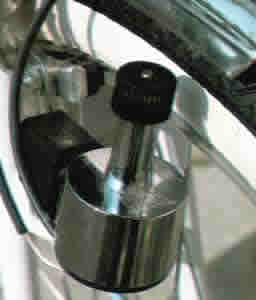
Trovate una dinamo, usata, nuova, rubata dalla bici vecchia di 20 anni che ha il vostro vicino di casa, purché cerchiate di trovarla da 6V, almeno sarete sicuri che ci sia una riserva in potenza sufficiente.

Hey, are you sure it is 6V?
Questo è il premio della caccia al tesoro…. Pssssssst non c’è nessuno, sbrigati col cacciavite!


Ora dovete scegliere un posto stabile per montare la suddetta dinamo al telaio della vostra bici. Io ho usato la staffa posteriore dove normalmente si avvita la lampadina rossa. Basta di solito un bullone per fissarci la dinamo; nel mio caso ho avuto bisogno anche di una certa quantità di fil di ferro per assicurarmi che la parte rotante fosse sempre e comunque a contatto con il copertone. Preparatevi ad ogni modo ad usare la forza bruta per piegare il braccio della dinamo e fare in modo che la testa della stessa sia nella gista posizione per toccare la parte zigrinata della gomma. Fate in modo che il contatto della testa con il copertone sia "deciso", né troppo leggero, perché facilemente la dinamo vibrerebbe e perderebbe contatto con la gomma, né troppo aderente, per evitare che l’attrito sia eccessivo e si consumi il pneumatico. Insomma, fate delle prove con la bici a testa in giù, e vedete se girando velocemente in pedali al rapporto più alto la dinamo rimane (quasi) sempre a contatto con la ruota senza vibrare troppo frequentemente.


Ora che avete la sorgente di energia elettrica, vi serve tutto l’occorrente per "raddrizzare" l’uscita alternata della dinamo (a meno che non ne abbiate trovata una che dà già corrente continua in uscita, ma non ne ho mai viste). Quindi procuratevi i seguenti componenti elettronici (che potete comprare, ma perché farlo se smontando una radio o un vecchio televisore ne avete in abbondanza)


4 diodi:

Anyone of'em is ok. If you know how to use them :-P
Un diodo viene raffigurato come –>|– dove la punta della freccia rappresenta il "polo positivo". Il lato del diodo con l’anello nero o colorato è il polo positivo.


1 condensatore (o capacitore):

Do not pull those wires!
Questi sono due comuni esempi di condensatore. Meglio se trovate un condensatore con una capacità di qualche Volt superiore all’uscita della dinamo, come quelli comunissimi da 16V. La capacità dovrà essere piuttosto alta, almeno 2000uF, o la riproduzione del walkman, specialmente durante le corse veloci, sarà fastidiosamente disturbata da un forte ronzio di fondo.


batterie ricaricabili: servono come riserva di carica per quando ad esempio vi fermate ad un semforo o quando state procedendo in salita a velocità artropodica e l’energia prodotta non sarebbe sufficiente a far funzionare la riproduzione, ma soprattutto per assorbire gli eccessi di energia in occasione di corse veloci in piano oppure in discesa. Infatti il mio walkman, senza alcuna batteria inserita in parallelo, semplicemente smetteva di funzionare se la corrente in uscita dalla dinamo era troppo elevata, e cioè se le ruote giravano troppo velocemente. Ovviamente dovrà trattarsi di batterie di voltaggio simile all’uscita della dinamo. Io per esempio ho usato delle vecchie batterie ricaricabili di un vecchio aspirapolvere portatile che aveva rottamato mia nonna; vecchissime e assolutamente inefficienti per tenere la carica a lungo, ma non è questo che vi serve. Non ponete limiti alla fantasia, magari le batterie dei vecchi cellulari del babbo e della mamma vanno bene, se le collegate in parallelo per avere una tensione pari alla somma delle relative differenze di potenziale.

saldatore (solo se volete fare un lavoro "pulito"; io in realtà non l’ho usato)


E questo è lo schema che dovrete seguire:

Admire the artistic talent...
Non strabuzzate gli occhi e cercate di raccapezzarvi. Non pensavate veramente che una guida del genere potesse essere compresa anche da chi non ha la minima concezione di elettronica? Fate bene attenzione a tutte le polarità rapprensentate in figura, vanno assolutamente rispettate.

Un buon punto per piazzare il raddrizzatore, cioè diodi più condensatore (che avrete opportunamente avvolto in più giri di nastro isolante per eviare che ci finiscano polvere e schizzi) è presso il punto di convergenza dei tubi orizzontale e obliquo anteriore del telaio, mentre le batterie trovano un comodo alloggiamento sotto il tubo orizzontale del telaio, come rappresentato in figura:

Don't ever try this at home kids!
Posizionate il raddrizzatore impacchettato nel punto marcato col cerchio giallo. Posizionate invece le batterie in corrispondenza del cerchio verde.

Avete in posizione sia la dinamo che le batterie e il raddrizzatore, non rimane che collegarli. Dato che la dinamo ha un’uscita a corrente alternata, collegate un suo polo con un polo d’entrata del raddrizzatore, e l’altro con l’altro polo del raddrizzatore (ah, se non lo sapeste il secondo polo della dinamo è il suo stesso telaietto, per cui va bene legare un filo conduttore al braccio metallico che avete bullonato al telaio).

Su, manca poco!

Collegate il polo positivo delle batterie al polo positivo dell’alloggiamento delle pile del walkman, stesso discorso per i poli negativi. Dovreste aprire il walkman per tirar fuori i cavetti collegati alle placchette metalliche, ma l’importante è avere un contatto stabile. Se siete ipertecnologici potete usare l’ingresso a jack per l’alimentazione esterna. Magari, visto che dovrete maltrattare il walkman, usatene uno vecchio.

Io ho montato il walkman sul centro del manubrio, inserito in un astuccio impermeabile di plastica trasparente, a sua volta fissato con del nastro per pacchi al telaio, e con una tavoletta di compensato tra l’astuccio ed il manubrio che dava un appoggio in piano.

Purtroppo, anche se ora ho una webcam con cui poter fare foto di tutto l’occorrente, ho già smontato il walkman dalla bici… ma confido nella vostra abilità manuale.

Build your own cycleradio™ to listen to music on your bycicle without batteries

2008 notice: this article is way outdated now that lithium MP3 players are sold for a few bucks, still you can feel like a nerd and build this contraption out of sheer fun.

I made the whole thing myself, during a summer vacation, some years ago, when I was really, really, REALLY bored, so I came up with this weird idea. The system’s gonna be disassembled from my mountain bike shortly (still works OK after years of dust on the bicycle), just because lately (another summer vacation), I’ve had the occasion to make some long and rough rides, which I’ll repeat through all the holidays, and the walkman, which was going anyway to be trashed if I didn’t recycle it this way, doesn’t appreciate the frequent 1.5G shocks (my a$$ neither, but it’s another story…); plus the dynamo doesn’t fit well with the rear tyre at HIGH speeds.

Anyway, if you use your bicycle for city rides, not so fast as well, the CycleRadio™ will be your faithful bike-audio system for very, very long.

I’ll pass throught the graphic explanation of the manual steps, to come directly to explain HOW the whole thing is done and works.

Why? Only because if you are really unable to figure how to technically assemble all this, I can do nothing but recommend you to a good physiotherapist. And, not less notably, also because I don’t have a webcam to paste here the pics of how I did it on my bike.

Let’s proceed.

Find a dynamo. Used, new, stolen from your neighbor’s ’60 bike, or from your mom’s ’80, but broken, one (as in my case). You should be able to get a 6V one, since it’ll give more reliability to the system.

Hey, are you sure it is 6V?
This is the prize for your quest, brave knight. Pssssst noone’s around, get a screwdriver!


Now you have to find a suitable place to fix it to the frame of your proud mountain bike. I chose the rear bracket which is normally used to attach the rear lamp (there are some nice holes where you need only a bolt to stick the dynamo). In the best of cases, you’ll need your brute strenght (better if helped by a solid pair of vanadium pliers) to fold the arm of the dynamo to make it rotate perfectly against the tyre (be careful here, placing the rotating part too tight may spoil the rubber, as placing it too near to the carvings of the tread will hurt often on the dynamo itself, causing it to be displaced very soon); also, you may need some steel wire to stabilize the structure to the frame).

Next, you’ll need someting to convert the AC of the dynamo to the DC which uses a walkman. And you may need to buy some electric pieces, if you can’t manage to remove them from an old TV, radio, or whatever.

This is what you need:

4 diodes:

Anyone of'em is ok. If you know how to use them :-P
A diode is represented as –>|– where the point of the arrow is the positive pole. The side of the diode with the black or coloured ring is the positive pole.


1 capacitor:

Do not pull those wires!
These are two examples of what you need. Better get a capacitor of some Volts higher of the dynamo’s, lilke 10-12-16V, and at least of 2000uF, or your walkman playback, during fast rides, will simply suck.


solderer (needed only to make a "clean" work; I didn’t use one)


And this is how you need to assemble them:

Admire the artistic talent...
Clear eh? Now, don’t cry and use your fantasy, it’s clear indeed. I put in here ALL of the components, so you’ll use this image as reference. Make sure the positive pole of the diode-square and the positive pole of the capacitor match. The same for the negative poles.


A good place to stick this small rectifier, which is the sum of the 4 diodes plus the capacitor (and which you’ll have packed in some Scotch tape, or better insulating tape, to make it waterproof, after you made sure there are no short circuits – just use insulating tape also on the bare contacts) is right about here:

Don't ever try this at home kids!
Place the scotch-packeted rectifier circuit right in the place marked with the bright-yellow dot. Place instead the scotch-packeted battery-pack in the place marked with the bright-green dot.


Now you have in place the dynamo and the rectifier circuit. Mmmmm what next… why! Just wire them! You don’t need to connect specific poles, just one pole of the dynamo with one pole of the rectifier (not the ones connected to the capacitor, but the free ones) and then the other pole of the dynamo with the free pole of the rectifier (Important Notice Only For True L4m3r5: a dynamo has two poles, not only the one you can see at the bottom of it. The second pole is — try to guess — the bracket used to fix it to the bike frame!).


Let’s come to the batteries. Not the battieries you usually put inside a walkman, but every kind of rechargeable battery, the bigger the better, which has a Voltage of 6~9V (so, even the one of dad’s old cellular phone, if you know how to use its poles, or, as the ones I used, the rechargeable batteries of a broken portable vacuum cleaner…). You’ll attach the battery-pack somewhere else on the frame (see the previous pic).

In this case the positive output pole of the rectifier (the one on the side of the capacitor) must match with the positive pole of the battery, same for the negative poles.


One step to the victory!

Now, just wire togheter the positive pole of the battery with the positive pole of the walkman, same for the negative. You’ll need to open the walkman so to pull out the wires which actually reach the electrodes, and connect these wires with the wires coming from the battery (didn’t I tell you? The walkman will be lost, since, after that, you won’t be able to put batteries in it; so, better use an old walkman… you know the huge crappy one your grandma bought you for birthday, not knowing you already had an untraslim-single battery one? )

I suggest you to place the walkman on the handle-bar, right in the middle, where every mountain-bike has a short straight metal tube going from the handle-bar itself to its axis. Just fix here a small transparent zip-bag (like the ones used to put makeup accessories – here the mom will be useful again…) with a small table of plywood on the bottom, so to create a solid surface. Done.

You don’t need me to tell you how to pull cables from one piece to another do you?

Script automatico per copiare i propri backup da CD/DVD a hard disk/nas

14/4/2010. Di recente ho deciso di non salvare più i miei backup su CD/DVD e di trasferire tutto su un hard disk da 2 terabyte. Non è economico, ma quello che da una parte si spende di più (una tantum) si guadagna dieci volte tanto in quanto a rapidità, semplicità e spazio fisico occupato. Quindi ho acquistato un disco da 2TB e l’ho inserito in un box usb esterno.
Salvare i dati “nuovi” sull’hard disk è poca cosa, ma invece copiare tutti i contenuti di alcune centinaia di “vecchi” dischi ottici è un’altra storia, infatti farlo manualmente disco per disco sarebbe un’opera titanica; per questo avevo immaginato che esistesse un programma apposito che fosse in grado di trasferire i dati da CD/DVD a disco rigido in maniera automatica, richiedendomi solo di cambiare i dischi di volta in volta.
In altre parole tutto quello che volevo fare era aspettare che il disco appena copiato venisse espulso, cambiarlo con quello successivo e richiudere il cassettino continuando a usare il pc per altre cose, qualunque cosa fosse (scrivere questa guida ad esempio, mentre di tanto in tanto allungo il braccio e sostituisco i cd). Naturalmente per la legge di Murphy un programma del genere non esisteva, o almeno un’ora di ricerche non ha portato a nulla, quindi o lo scrivevo da me, oppure facevo tutto a mano trascinando i file sul nuovo hard disk un CD/DVD alla volta; scrivere un programma richiede molto meno tempo che fare un lavoro del genere a mano, quindi ecco qui i risultati.

La mia scelta è caduta su AutoHotKey come linguaggio di scripting (l’ho già usato in passato, ed ha proprio le funzioni di cui avevo bisogno), quindi in un’ora di lavoro studiando il linguaggio, ho scritto alcune righe di codice che fanno esattamente quello che mi serve.
In breve, ecco il listato della routine (non copiatelo ancora, leggete le spiegazioni alla fine):

while 1
{
	empty = 1

	while empty
	{
		DriveGet, status, StatusCD, E:

		if (status = "stopped" OR status = "not ready")
			empty = 0
		
		Sleep, 500
	}


	SetWorkingDir, E:\

	Loop, *.*, 2, 1
		FileCreateDir, M:\%A_LoopFileFullPath%
	
	Loop, *.*, , 1
	{
		if (A_LoopFileName != "filename1.ext"
		&& A_LoopFileName != "filename2.ext"
		&& A_LoopFileName != "filename3.ext")
		{
			docopy = 0
			IfExist, M:\%A_LoopFileFullPath%
			{
				MsgBox, 4, Overwrite file?, Overwrite file %A_LoopFileFullPath%?
				IfMsgBox, Yes
					docopy = 1
			}
			else
				docopy = 1
			if docopy = 1
				FileCopy, %A_LoopFileLongPath%, M:\%A_LoopFileFullPath%, 1
			if ErrorLevel
				MsgBox, Could not copy "%A_LoopFileLongPath%" to "M:\%A_LoopFileFullPath%" with ErrorLevel = %ErrorLevel%.
			ErrorLevel = 0
		}
	}

	Drive, Eject, E:
	
	SetWorkingDir, C:\
}
	

Come dicevo prima, non mettetelo ancora in funzione, è quasi sicuro che dovrete modificarlo.
Sostituite TUTTE le occorrenze di “E:” con la lettera giusta del lettore cd/dvdrom che userete.
Sostituite TUTTE le occorrenze di “M:” con la lettera giusta del disco rigido su cui volete copiare i dati.
La parte con “filenameX.ext” è per mia comodità, e forse anche per la vostra: ci sono alcuni file su quasi tutti i miei dischi che non vanno copiati sul disco rigido, si tratta dei cataloghi dei file, di alcuni eseguibili per riprodurre i video, eccetera; quella parte del codice è proprio per inserire il nome di questi file che volete vengano ignorati durante la copia. Se ve ne servono più di tre, basta ripetere la riga al centro più volte, se ve ne servono di meno, o nessuno, o modificate lo script, oppure se non avete idea di come fare potete lasciare tutto com’è, non credo che nei vostri backup ci siano file con nome “filenameX.ext”, quindi il programma funzionerà come se nulla fosse. Il comando “SetWorkingDir, C:\” è solo un passaggio temporaneo necessario per non interrompere il procedimento mentre cambiate dischi, lasciate tutto così purché abbiate un drive C:!

Salvate il codice in un file testuale con estensione .ahk, installate AutoHotKey e fate doppio click sul file che avete creato; se riceverò abbastanza richieste, troverò la voglia di creare un file eseguibile per avviare la routine senza dover installare autohotkey. Questo è il funzionamento del programma: quando viene lanciato, non fa nulla a meno che non trovi un disco inserito nel lettore ottico; appena inserite un disco inizia a copiare tutti i file sul disco rigido di destinazione (esclusi quelli che vanno ignorati, se presenti), ricreando la struttura delle cartelle presente su CD/DVD. Se ci sono file che esistono già sul disco rigido (perché magari presenti anche in altri dischi già copiati) il programma vi chiede se volete sovrascriverli o meno; a questo punto sorge un problema, perché nel mio caso anche se scelgo di sovrascrivere il file ricevo comunque un errore, ma premendo OK il programma continua ugualmente a funzionare; se accade anche a voi ed avete necessità di sovrascrivere comunque il file, allora vi conviene piuttosto cancellare manualmente il file già presente sulla destinazione e dare l’ok per sovrascrivere; oppure potete modificare lo script per fare in modo che salti del tutto i file già esistenti (ma io preferisco comunque avere una notifica, non si sa mai). Ad ogni modo, una volta che il disco ottico è stato completamente copiato, lo script “sputa fuori” il cassettino e si ferma, e avrete tutto il tempo di cambiarlo con quello successivo; poco dopo che avrete richiuso il cassettino, senza dover fare altro lo script ricomincerà a copiare i file, e così via; per fermare il procedimento, fate clic destro sull’icona verde con la lettera H nell’area di notifica, e premete Exit.

Ho testato lo script solo sul mio pc, e non ho tempo di fornire supporto se sul vostro non funziona. Ho comunque pensato che sarebbe stato utile condividere questo lavoro nel caso in cui qualcun altro avesse dovuto fare la stessa cosa.
Per la cronaca, finora il 4% dei CD risultava illegibile al punto da non permettere di essere copiato; non sono ancora giunto al punto in cui iniziai ad usare i DVD; per quanto riguarda le statistiche, il primo posto dei CD non leggibili va ai Verbatim Datalife (non plus), il secondo (una sorpresa) ai TDK Reflex, e all’ultimo ci sono i Traxdata tx; un’altra sorpresa, una marca sconosciuta di CDr con die verde, “CDV”, i primissimi che comprai, quindi anche quelli masterizzati più tempo fa (si parla di 9 anni), sono risultati tutti perfettamente leggibili, anche se non sempre a buone velocità; risultati perfetti, con alte velocità di lettura, sia per i TDK metalAZO con superficie bianca stampabile, che per i Verbatim DataLifePlus con superficie argentata, entrambi (ovviamente) con die blu; menzione d’onore sia per i TDK d-view che per i Verbatim Pastel-Disc, che sono risultati tutti leggibili.