How to record MSTalkit voices with Microsoft Windows Sound Recorder

So, you didn’t understand how to make it. Well, what am I here for then?

First step: install and run MS Talkit (download it from Downloads/AudioVideo).

No comments
Hey you made it! MS Talkit is running!


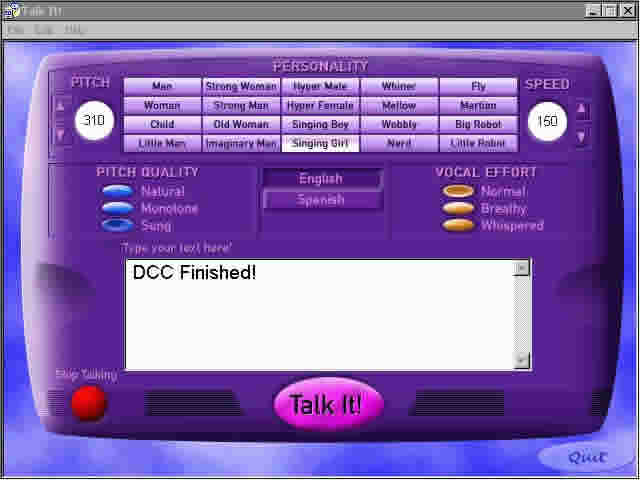
Ok, now begin playing with it to acquire the method, then just reach the point, and do something like this:

Ph33r My V0c41izing 5ki11z!!
This is really nice, the same I use. For a get fail, try instead "DCC Failed!", Child personality, Breathly Vocal Effort. The child seems he is amost crying cause of the transfer error 😉


So, after you tried Talkit and had fun with it, start Sound Recorder (Start > Programs > Accessories > Entertainment), locate it over Talkit, so when you switch from one another their windows don’t cover each other, and press in rapid sequence the Rec button in Sound Recorder, followed by the "Talk It!" button in Talkit. When the phrase is finished hit the Stop button in Recorder. Now, even if you’ve been a lot fast, there will be silent delays at the beginning and at the end of the WAV, so move the slider till you find a wave with a big amplitude,

You were pressing the play button, admit it!
Here I pressed the Rec button about 0.9 secs late (hey it’s 11pm while I’m writing…), so had to remove a lot of silence. Always try to play from the current slider position to see if the wave belongs to the voice or to the noise before the voice starts.


then do [Edit > Delete before the current position] to remove the silence at the beginning. See when the Wave ends, and do [Edit > Delete after the current position], then do [File > Save] and go to mIRC’s folder (I suggest not going higher than 22KHz, 8bit, mono quality, it would be a waste of disk space; to achieve this, simply press the Change button in the Save dialog, and choose these settings).

Hewgh you did the same for allthe sounds you wanted to put in mIRC I hope (I mean Query, DCC Send, DCC Fail, DCC Complete, Notice, and so on), otherwise I just lost my time for a single 1.5 secs WAV file…

Now get back to the main mIRC Event Sounds page

Sincronizzare e modificare/regolare i sottotitoli per film AVI e DivX

Ottobre 2008: ho aggiornato questa guida all’uso di Subtitle Workshop, un programma gratuito che fa lo stesso lavoro in meno di un decimo del tempo che serviva con la vecchia guida, siccome gran parte dei passaggi che dovevano essere eseguiti manualmente sono ora attuati in automatico. Per visualizzare la vecchia guida, che invece usa il programma SubAdjust, scorrere in basso oltre la riga orizzontale.

Per prima cosa, scaricate il programma gratuito Subtitle Workshop, cercatelo su google. Tenete presente che questa guida è stata redatta sull’ultima versione, la 4 beta. Poi, seguite le istruzioni qui sotto.

subtitle workshop finestra di apertura
Questo è come appare il programma gratuito Subtitle Workshop subito dopo l’avvio; dovete aprire il file dei sottotitoli dal menu File>Open, oppure premendo il pulsante di apertura file, e quindi cercando il file dei sottotitoli sul disco.


subtitle workshop con i sottotitoli aperti
Questo è il file dei sottotitoli aperto in Subtitle Workshop; ora bisogna aprire il video per il quale stiamo sincronizzando i sottotitoli, dal menu Video>Open


subtitle workshop con i sottotitoli ed il video aperti
Questa schermata è stata tratta subito dopo aver aperto sia i sottotitoli che il video in Subtitle Workshop (il fotogramma video non è visibile perché il programma che ho usato per catturare le immagini, ScreenRip 32, non è in grado di registrare gli overlay… la stessa cosa accade col tasto Stamp della tastiera). Il video inizierà ad essere riprodotto automaticamente assieme ai sottotitoli. Ci sono a questo punto due modi per sincronizzare i sottitoli, che sono praticamente la stessa cosa, ma fatta con strade diverse. Il primo metodo consiste nel selezionare la prima riga dei sottotitoli, e arrivare con il video al punto in cui quella riga viene detta, quindi bisogna premere in contemporanea alla battuta il terzo pulsante dalla destra sotto il video, quello con il numero “1” in piccolo; successivamente, selezionate l’ultima riga dei sottotitoli e saltate al punto in cui questa riga viene detta, e allo stesso modo di prima, non appena la sentite, premete il secondo pulsante dalla destra, quello col numeretto “2”. A questo punto, comparirà una finestrella con il riassunto delle temporizzazioni, che vi chiede se volete effettuare la modifica ai sottotitoli. Controllate che le temporizzazioni riportate siano giuste, e premete il pulsante Adjust. I sottotitoli dovrebbero essere sincronizzati, controllate guardando il video in Subtitle Workshop, e se è tutto ok salvate il file. OPPURE, potete usare l’altro metodo, spiegato sotto l’immagine successiva.


subtitle workshop e la sincronizzazione manuale
Secondo metoto: sincronizzazione manuale. Per prima cosa, scrivetevi ora:minuti:secondi a cui vengono dette nel video la prima e l’ultima riga dei sottotitoli, poi andate al menu Edit>Timings>Adjust subtitles. Una finestra come quella nell’immagine vi chiederà di inserire i tempi che avete appena scritto da parte, quindi premete il pulsante Adjust. Controllate che sia tutto a posto guardando il video in Subtitle Workshop, e se il risultato vi soddisfa, salvate il file.


NOTA IMPORTANTE: quella che segue è la prima guida che ho scritto anni fa per la sincronizzazione dei sottotitoli, e che è soppiantata dalla nuova. Non avevo il coraggio di eliminarla del tutto, quindi l’ho lasciata in calce per il beneficio della posterità.


Questa guida è stata pensata per tutti voi praticanti sassonoglotti (ho coniato una nuova parola?), che, guardando film in inglese, anche se avanzati in questa lingua, incontrate molto spesso quelle pronuncie superveloci o quel sottodialetto slang o ancora quell’incomprensibile accento che vi mette K.O. (ogni riferimento a "Snatch" e "Trainspotting" NON è puramente casuale). Per cui scaricate il vostro bel file di sottotitoli, e o non sapete come usarlo (ma se è questo il caso, la presente guida non vi dirà nulla in merito), oppure notate che cominciano quasi sincronizzati, ma poi vanno completamente fuori tempo, per essere inutilizzabili verso la fine del film.

Premessa importante: questa guida è riferita al formato SubViewer 2.0, e presuppone una situazione ideale in cui usiate BSPlayer per guardare il film (lo trovate nella sezione Downloads/AudioVideo). Di conseguenza, se preferite usare altri player che non supportano il formato SubViewer, oppure odiate il suddetto formato per qualche ragione, potete tuttavia usare la presente guida, ad ogni modo le istruzioni, che trovate alla fine, su come convertire i formati di sottotitoli, non sono state testate in nessun modo dal sottoscritto.

Scaricate SubAdjust dalla sezione Downloads/Audiovideo, e intanto procedete alla modifica iniziale del file, cioè rimuovete i commenti o la firma di chi ha copiato i sottotitoli dal DVD, ad esempio:

...
1403
  02:43:08,687 --> 02:43:09,722
  Sam...
1404
  02:43:13,167 --> 02:43:15,681
  ...I'm glad you are with me.
1405
  02:51:01,967 --> 02:51:02,956
  Subtitles by
  SDI Media Group

che in questo caso si trova alla fine del file (un premio speciale a chi indovina di che film si tratta), ma potete trovarli anche all’inizio:

{0}{900} ****Le Garçon Française   SUBS****|Vive la France!!
  {905}{1002}- Le 3 septembre 1973|à 18 h 28 min et 32 s,
  {1010}{1062}...une mouche bleue|de la famille des Calliphoridés,
  {1070}{1138}...pouvant produire 14,670 battements|d'ailes à la minute...
  {1145}{1220}...se posait rue Saint-Vincent,|à Montmartre.
  {1318}{1378}A la même seconde,|à la terrasse d'un restaurant,
  {1385}{1458}...le vent s'engouffrait|sous une nappe,
  {1462}{1555}...faisant danser les verres|sans que personne ne s'en aperçoive.
  ... 

(un altro premio speciale a chi indovina anche questo film; a proposito in questo caso il commento l’ho inventato, non riuscivo a trovarne di già pronti).

Potete facilmente fare questo aprendo il file dei sottotitoli (che potrebbe avere estensione .txt, .sub, .srt o diversa; io le ho comunque tutte associate a Notepad) in un editor testuale, e rimuovendo quelle righe manualmente, salvando il risultato; quando i sottotitoli hanno un numero ordinale ed un marchio di tempo su più linee, dovete rimuovere l’intero gruppo di informazioni.
Non facciamo questo perché siamo perfidi e vogliamo rimuovere ogni traccia delle persone altruiste che hanno rippato i sottotitoli dal DVD, ma bensì perché se lasciassimo queste righe aggiuntive, che non hanno nessuna controparte nel film, facilmente faremo confusione nella sincronia del file.

Ci sono fondamentalmente 3 tipi di desincronizzazioni nei sottotitoli:
1) Semplice sfasamento, l’inizio è spostato in avanti o indietro rispetto al tempo corretto, comunque il resto dei sottotitoli segue ad una velocità regolare;
2) Framerate sbagliato, dove l’intervallo di tempo tra due battute successive è differente da quello corretto, ma la velocità di scorrimento è uniformemente aumentata o diminuita (il tutto con o senza sfasamento, per i nostri scopi non ci interessa);
3) Sottotitoli completamente incasinati (per fortuna li si trova raramente) dove o il video, anche se appare perfetto, ha qualche variazione minima nel framerate in alcune scene, per cui qualche sequenza va più o meno veloce delle altre, o i sottotitoli sono stati rippati male, o ancora i sottotitoli originali sono stati sequenziati erroneamente, o ancora ancora i sottotitoli mancano di alcune scene presenti nel film oppure hanno scene aggiuntive che nel film non ci sono: in questi casi di solito o cercate un altro file di sottotitoli, o rinunciate al film sottotitolato (questo è il peggiore tipo di desincronizzazione, perché ve ne accorgete solo dopo aver provato a aggiustarlo in tutti i modi; provare a sincronizzare questi sottotitoli è estremamente noioso, e anche se sarei in grado di farlo – una volta ci ho provato… lasciando stare -, non includerò le istruzioni per farlo perché, nonostante mi reputi una persona cocciuta, non ci perderei mai del tempo).

In ogni caso, dovendo lavorare nel formato SubViewer usando SubAdjust, dovete convertire tutti i sottotitoli che si trovano in formati diversi. Potete riconoscere un file SubViewer aprendolo in un editor di testo. L’inizio avrà questo aspetto:

[INFORMATION]
  [AUTHOR]
  [SOURCE]
  [PRG]
  [FILEPATH]
  [DELAY]
  [CD TRACK]
  [COMMENT]
  [END INFORMATION]
  [SUBTITLE]
  [COLF]&HFFFFFF,[STYLE]no,[SIZE]18,[FONT]Arial
  00:00:35.00,00:00:39.34
  On September 3, 1973...

  00:00:39.38,00:00:44.34
  a blue fly capable of flapping[br]70 beats a minute..

  ...

cioè una intestazione con le informazioni generali sul film (inserite o meno) e poi per ciascuna riga un segnatempo iniziale e finale, e subito sotto la battuta. Se i sottotitoli non sono in questo formato, avviate SubAdjust e convertiteli.

Aprite i sottotitoli in "Source File", e scrivete un altro nome per l’output in "Target File", quindi selezionate "Conversion to SubViewer 2.0", e premete GO. Il file originale potrebbe avere un’altra estensione come .txt, .srt eccetera.


Iniziamo a vedere coa bisogna fare. Quando notate chei sottotitoli nn vengono visualizzati al momento giusto, non fa mai male provare all’inizio a vedere se si tratta di un semplice sfasamento. Segnatevi il tempo della prima battuta dei sottotitoli nel film; esempio, ammesso che abbiate rimosso i commenti, leggete che la prima riga nei sottotitoli è "Now, children,[br]are you sitting comfortably?", avviate il film e ssegnatevi quando quella cosa viene detta (diciamo 0:00:04, 4 secondi dall’inizio), e avviate SubAdjust.

Come prima prova, aprite i sottotitoli, e scegliete il nome con cui vorrete salvare il risultato (di solito io uso lo stesso nome aggiungendo un ‘ o più ”’). Selezionate "Adjust", e nell’angolo in basso a sinistra inserite il tempo che vi siete segnati dal film, poi premete GO.


Aprite il film, e vedete se saltando avanti e indietro i sottotitoli vengono visualizzati correttamente. Probabilmente non succederà, quindi procediamo alla seconda parte della guida (framerate sbagliato).

Lo svantaggio del secondo approccio è che potreste rovinarvi la sorpresa, visto che dovete segnarvi il tempo della prima battuta nel film (proprio come abbiamo fatto prima), poi vedere qual è l’ultima battuta scritta alla fine del file dei sottotitoli (cioè l’ultima battuta del film), e a quale tempo quella battuta viene detta (di conseguenza dovete saltare alla fine del film per cercarla. E’ una cosa che odio, ma non c’è nessuna alternativa). Avrete quindi a disposizione il tempo, riferito al film, della prima e ultima battuta. Annotateli e aggiustate i sottotitoli in modo che inizino a 0:00:00, poi calcolate "tempo dell’ultima battuta MENO tempo della prima battuta", otterrete l’intervallo che passa dalla prima all’ultima battuta nel film. Visto che abbiamo fatto iniziare i sottotitoli a 0 secondi, questo sarà anche il tempo al quale vorremo sincronizzarli in modo che l’ultima riga dei sottitoli abbia quel marchio. procediamo:

Dopo che avete fatto iniziare i sottotitoli a 0 secondi, caricate il file così modifcato e selezionate "Change frame rate", quindi attivate la casella "Use last ref. time" e in "Coef. / desired last ref.time" scrivete il risultato della sottrazione che vi ho fatto fare prima (notate che avete bisogno di agigungere sempre e comunque i centesimi di secondo al tempo calcolato, quindi semplicemente usate .00 alla fine) Premete GO per scrivere l’output col nome di file scelto in "Target File".


Dopo aver completato anche questo passo, caricate in SubAdjust il file appena creato, che inzia a 0 secondi e finisce al tempo che avete calcolato, e ri-aggiustatelo perché inizi al tempo giusto, cioè a quello in corrispondenza del quale viene detta la prima battuta del film; stavolta però sarete sicuri che le battute successive sono sincronizzate.

Occasionalmente avrete ancora bisogno di aggiustare il tempo, questione di 1 secondo in avanti o indietro, ma già sapete come farlo.


CONVERSIONE AD ALTRI FORMATI

Come vi avevo anticipato, questa parte non è stata testata, ma se volete davvero usare i sottotitoli in un altro formato, alla fine di tutto caricate il file sincronizzato, selezionate "Conversion to [altro formato che preferite]", e premete GO per salvare i sottotitoli nel nuovo formatocon il nome file scelto in "Target File".

Adjust and synchronize AVI & DivX movie subtitles, the guide

October 2008: I updated this guide to the use of Subtitle Workshop, a freeware utility which does the same job I explained back then, in a tenth of the time, or even less, since all the manual steps are now condensed into a few passages. To read the old guide, which insteadused the program SubAdjust, scroll down right past the horizontal line.

First of all, download the free program Subtitle Workshop, you can just as easily google for it. Keep in mind I used the latest 4 beta version in this guide. Then you can follow the image tutorial below.

subtitle workshop opening window
This is how the Subtitle Workshop free utility appears right after the first start; you may want to first open the subtitles file, from File>Open, or by pressing the open button, and then browsing to the actual subtitles.
subtitle workshop with opened subtitles
This is a subtitles file opened in Subtitle Workshop, no more, no less; right now, it’s the time to open the video file the subtitles are associated with, from Video>Open
subtitle workshop with opened subtitles and video file
This is after opening both subtitles file and video file inside Subtitle Workshop (the video file still is not visible, as the ScreenRip32 utility which I used cannot properly capture overlay… same thing happened if I tried the PrintScreen key). The video will start playing automatically along with the subtitles. There are two choices now to start adjusting the subtitles, which are, well, pretty much the same. Either you select the first line of the subtitles, and play the video where that first line is spoken, and when that happens you press the third button from the right below the video, which says “1”; then you select the last line of the subtitles and jump to the point where that line is spoken, pressing instead the second button from right which says “2”. At this point, a little window will appear with a summary of the details regarding the timings, asking you if you want to adjust the subtitles accordingly. Check that the timings reported in that window are correct, then press adjust. At this point the subtitles are synchronized (verify by playing the video inside Subtitle Workshop) and you can save the results. OR, you can use the other method instead, just see the picture below.
subtitle workshop timings adjust dialogue
Second method: manual timing. First of all, write down the exact times when the first and last spoken lines of the subtitles file are said in the video, then to manually set the timings to adjust the subtitles, follow the menu Edit>Timings>Adjust subtitles. A dialogue like the one in the picture will appear, and you just have to fill in those times you just wrote down and press adjust. Check the results by playing back the video in Subtitle Workshop to see if subs are really synched, then save the file.

IMPORTANT NOTE: what follows is the very first guide to subtitles synchronization that I wrote, and which is now substituted with the guide above. I just didn’t have the heart to remove it altogether, so I left it here for the sake of posterity.


This guide has been thought for you non-english users who, even if top-grade in this language, very often encounter those uber-fast pronounciations or that slang sub-dialect or again that nasty accent (and every link to “Snatch” or “Trainspotting” is NOT casual), that really beat you. So you download a subtitles file, and you either don’t know how the heck to use it (but if it’s the case, then search elsewhere because this guide won’t tell you how), or you find it begins almost synchronized, but gets really messed up, just to go wildly desynched at the end.

Important incroduction: this guide is related to SubViewer 2.0 subtitle format, and it’s referred to an ideal situation in which you see the movie using BSPlayer (get it from the Downloads/AudioVideo section). Which means, if you prefer to use other players which don’t support properly SubViewer format, or you hate SubViewer format yourself for some reason, you can still use this guide, yet the instructions, found right at the end, on how to resolve this “compatibility” issue, are not tested in any way by me, since I’ve always, and I’lll always, use the couple BSPlayer/SubViewer for my DivX subtitles needs.

Download SubAdjust from the Downloads/AudioVideo section of the website, then proceed to the basic preformatting of the file, which means removing the comments or the sign of the ripper, like:

...
1403
  02:43:08,687 --> 02:43:09,722
  Sam...
1404
  02:43:13,167 --> 02:43:15,681
  ...I'm glad you are with me.
1405
  02:51:01,967 --> 02:51:02,956
  Subtitles by
  SDI Media Group

which for example is at the end of the file (a special prize to the ones who will guess what movie was that one; c’mon it’s easy), but you can find them also at the beginning:

{0}{900} ****Le Garçon Française   SUBS****|Vive la France!!
  {905}{1002}- Le 3 septembre 1973|à 18 h 28 min et 32 s,
  {1010}{1062}...une mouche bleue|de la famille des Calliphoridés,
  {1070}{1138}...pouvant produire 14,670 battements|d'ailes à la minute...
  {1145}{1220}...se posait rue Saint-Vincent,|à Montmartre.
  {1318}{1378}A la même seconde,|à la terrasse d'un restaurant,
  {1385}{1458}...le vent s'engouffrait|sous une nappe,
  {1462}{1555}...faisant danser les verres|sans que personne ne s'en aperçoive.
  ...

(another special prize to the ones who will guess this other movie which the subs where taken from, it’s easy as well; BTW this sign was made up, I couldn’t find any signed file on the fly).

You can easily achieve this by opening the subtitles file (whose extension may be .txt, .sub, .srt or other; I have all these extension associated with notepad anyway) in a text editor, and manually deleting those lines, then saving; when the subtitles have an ordinal number and a timestamp in more lines, like in the first example, you must delete the whole record.
We don’t do this because we are evil and so want to remove every trace of the kind guy who ripped the subtitles from the DVD, but because in most of the operations we need to make in order to resynch the subtitles these additional lines at the beginning or at the end, which have no counterpart in the movie itself, will easily mess up everything.

There are basically 3 kinds of desynchs in subtitles:
1) Simple time shift, the beginning is shifted before or after the correct time, while the rest of the text follows at the right “pace”;
2) Wrong framerate, where the time distance between two lines of text is different from the correct one, but the speed is uniformly increased or decreased throughout the file (with or without time shift, it makes no difference considering the method we use to correct it);
3) FUBAR’d subtitles (don’t worry, they are pretty rare) where either your video, even if correctly watchable, has some glitches in the framerate of internal scenes, so that some video sequences have a framerate different from the nearby scenes, or the subtitles themselves were ripped very bad, or again the original subtitles were timestamped uncorrectly, or again again the subtitles lack some scenes which are present in the movie or have additional scenes missing from the movie: in these cases usually you search for another subtitles file, or you watch the movie without subtitles (this is the worst kind of desynch, since you can realize you have one only AFTER having tried the previous fixes; trying to fix these subtitles is extremely time consuming, and even if I could be able to do that – and I once tried… giving up -, I won’t include the steps in this giude, because I esteem myself a very stubborn person, yet I would never lose all that time to fix such a situation).

In any case, since you need to work with SubViewer format in SubAdjust, you have to convert the subtitles file to that format if it’s using another one. You can recognise a SubViewer file by opening it in a text editor. The beginning of the file will look like:

[INFORMATION]
  [AUTHOR]
  [SOURCE]
  [PRG]
  [FILEPATH]
  [DELAY]
  [CD TRACK]
  [COMMENT]
  [END INFORMATION]
  [SUBTITLE]
  [COLF]&HFFFFFF,[STYLE]no,[SIZE]18,[FONT]Arial
  00:00:35.00,00:00:39.34
  On September 3, 1973...

  00:00:39.38,00:00:44.34
  a blue fly capable of flapping[br]70 beats a minute..

  ...

that is, a record storing the general info about the movie (with or without the various fields filled) and then for each line a timestamp indicating the start time and end time, and just below it the subtitle. If the subtitles are not in this format, start SubAdjust and convert them.

Open the subtitles file in “Source File”, write another suitable name for the output, and select “Conversion to SubViewer 2.0”, then press GO. The original filename may have another extension like .txt, .srt and so on.

So let’s start examining the first two cases. When you see subtitles in a movie are shown when they shouldn’t, it doesn’t hurt to try and see if the simple time shift is occurring. So take a note of the time of the first subtitle in the movie; example, given you removed the comments out, you see that the first line in the subtitles file is “Now, children,[br]are you sitting comfortably?“, go play the movie and write down the time at which the thing is actually being said (let’s say 00:00:04, 4 seconds from the start), then start SubAdjust.

For the first try, open the subtitles file in the “Source File” input line, and choose the name you will save the output subtitles with (I usually put the same name followed by one ‘ or more ”’). Select “Adjust”, and in the lower-left corner select the time you just annotated from the movie, press GO and wait.

Open the movie file, and see, jumping to and fro, if the subtitles are shown correctly in all the movie. Chances are they won’t. So we begin examining the second case (wrong framerate).

The drawback of the method is that you will possibly spoil the ending, since you need to see at what time the first line is said in the movie (just like we saw before), then what is the line written at the very end of the file (and thus is the last in the movie), and at what time that last line is said in the movie (so you need to play the end to search for it. I HATE it, too bad I couldn’t find anoter way of telling). You will thus have the time, related to the movie, of the first and the last lines. Keeping note of them, adjust the subtitles files so they start at 0:00:00, then calculate “last-movie-line-time MINUS first-movie-line-time”, you will have the time span that passes between the first and last line in the movie. Since we adjusted the subtitles to start at 0 seconds, that is also the time we will want the last line to appear in the subtitles file. So proceed:

After you adjusted the subtitles to start at 0:00:00, load the adjusted file and select “Change frame rate”, then select the checkbox “Use last ref.time” and in the “Coef. / desired last ref.time” write down the result of the subtraction I told you to make before (note: you need to have cents of second, so just add .00 after the seconds). Press GO to write the file with the name you chose in “Target File”.

After this is done, load in SubAdjust the newly created file, which starts at 0:00:00, and ends at the time you just calculated, then re-adjust it to start at the time of the first line said in the movie, exactly like you did in the first method, but now you will be sure the final time will be correct.

Occasionally you will still need to adjust again the time, matter of one second before or after, but you already know how to do it.

CONVERSION TO OTHER FORMATS

As I told you, this part has not been tested, but if you really want to use subtitles in another format, select “Conversion to [other format here]”, and press GO to save the subtitles in the new format using the filename you chose in “Target File”.

Modificare il pulsante e la barra laterale del menu Start di Windows XP

Appena installato Windows XP e vi sentite euforici per via del look dl Menù start? Non so come si cambi il colore dello sfondo del pulsante (ci lavorerò appena ne avrò tempo), ma posso dirvi come modificare il testo "start", e l’immagine bitmap a lato del Menù dove è scritta la versione del sistema operativo.

Questo è un esempio:

Potete vedere come ho messo un smiley al posto di "start", e cambiato l’immagine di "Windows XP Professional" con quella del Datacenter Server. Ho appena aggiunto i passaggi per modificare l’immagine del pulsante Start, qui fa la sua apparizione Neo mentre prende la pillola rossa dalle mani di Morpheus. Potete anche cambiare il Tooltip che dice "Fare click per iniziare" con un testo a vostra scelta, ad esempio "Hack the matrix!"


L’operazione non è così immediata, dovete modificare il file explorer.exe, comunque non si tratta neanche di un lavorone… ma un disclaimer ci sta sempre bene

Se siete utenti novizi, *non* raccomando di seguire questa procedura, visto che, anche se è totalmente sicura e testata, non potete mai sapere quanto sarete sfortunati. Seguite il vostro cuore, e se il minimo dubbio vi attanaglierà, non proseguite. Comunque, se non si fosse capito, io non sarò responsabile di nessun pasticcio che combinerete a causa della vostra ineXPerienza

Per prima cosa scaricate ResHack da Downloads/Tools vari, e scomprimetelo in una cartella appositamente creata.

Prima di farlo partire, fare una copia di backup di windows\explorer.exe, ad esempio "explorer.exe.old".

Ora una dovuta premessa. Per modificare explorer.exe in Windows 95/98 l’unico problema è che questo era già in esecuzione, ma basta andare in modalità DOS e cancellarlo, sovrascriverlo o farci quello che volete. Windows XP invece usa il File Protection System, e quindi impedisce, anche chiudendo forzatamente explorer.exe (e quindi l’intera interfaccia) di cambiarlo. Dovrete di conseguenza riavviare in Safe Mode ("Modalità Provvisoria").

Per far questo, premete F8 subito dopo che all’avvio lo schermo diventa nero, e attendete il menù testuale. Avviata la modalità provvisoria (chiaramente dovrete lggarvi come amministratore), aprite il Task Manager premendo Ctrl-Alt-Canc. Da lì, nel pannello "Processi". selezionate explorer.exe e terminatelo, poi, dal menu File dello stesso Task Manager, avviate un nuovo programma, e sfogliate le cartelle fino a ResHack.exe.

In ResHack, fate [File > Open] e scegliete C:\Windows\explorer.exe. Vedrete una struttura ad albero simile a quella di Esplora Risorse.

Sfogliate fino a String Table\37\1033


Scrivete quello che vi pare al posto di start nella linea marcata 578; più è lungo il testo che scegliete, più diventerà largo il pulsante start. Se avete deciso di cambiare l’imagine del pulsante Start con una bitmap relativamente grande, conviene lasciare vuota questa stringa per non ottenere un pulsante Start enorme. Premendo il pulsante Compile in cima dopo avere lasciato le virgolette "" vuote, la riga verrà eliminata. Dopo che vi sposterete su un’altro punto della struttura ad albero ResHack vi chiederà se volete ricompilare il sorgente. Ovviamente rispondete di sì.


Il primo (e più facile) passaggio è terminato. Se volete cambiare anche il bitmap del Menù, continuate a leggere:

Le immagini che contengono i logo delle varie versioni di Windows si trovano nella sezione Bitmap dal numero 158 al 166. Scegliete quello che vi piace di più.


Questo è quello che ho scelto io, Bitmap\164\1033


Nel menù [Action] salvate il bitmap, per esempio in C:\, e chiamatelo datacenter.bmp


Andate in [Action > Replace Bitmap …] e in "Open file with new bitmap" sfogliate fino a datacenter.bmp che avete salvato prima, poi sulla destra, andate al numero di bitmap che corrisponde alla vostra versione di XP (nel mio caso XP Professional, 167; è 166 per la Home Edition), e premete Replace.


Ovviamente potete cambiare la bitmap con qualunque immagine volete, anche se non so se la larghezza deve essere la stessa, visto che non ho provato; alla peggio, il vostro Menù Start sarà spostato a destra se scegliete una immagina troppo larga.

Ed ora vediamo come cambiare immagine e Tooltip del pulsante Start. Considerate che se usate una taskbar con i pulsanti distribuiti su una sola riga, come da default, potete usare una immagine alta al massimo 30 pixel se volete evitare che il pulsante risulti tagliato in fondo. Io che uso una taskbar su due righe ho inserito un’immagine alta 50 pixel.

Sfogliate in ResHack la cartella Bitmap alla risorsa numero 143, la prima, e cambiate l’immagine contenutavi con la stessa procedura vista sopra.

Ora sfogliate fino alla String Table 34, riga 533:

Inserite al posto del testo già presente quello che preferite.


Fatto! Ora ricompilate i cambiamenti, fate [File > Save] e riavviate normalmente.

Ora sapete come fare, per cui potete modificare qualunque cosa, sia in explorer.exe sia in qualunque altro file.

Modify Windows XP start menu button and sidebar

Installed XP and you feel fuzzy about the new Start Menu? I don’t know how to change the background colour, but I can tell you how to modify the text that appears in that button, and also the bitmap image which, on the side of the menu, reports the current OS version.

This is an example of what you can achieve:

No need to comment… you can see for yourself how I put a smiley in place of "start", and changed the bitmap reporting "Windows XP Professional" with the more stylish "Codename Whistler Datacenter Server"
New addition: you can now change the image in the Start button as you prefer, see Neo while he takes the red pill from Morpheus’s hand. You can also change the "Click here to begin" Tooltip, which appears after leaving the mouse on the button, to whatever you want, like "Hack the Matrix!"


It isn’t so immediate though, you don’t need to change simply a registry key, but you have to modify the file explorer.exe (don’t worry, no tough HEX editing, you just need a simple tool).

Disclaimer: if you are a first time user, I do *not* suggest you to use this guide, since, even if it is completely safe and error proof (backups rule), you never know where the border between safety and danger lies. Follow your heart. If you feel even the slightest doubt, do *not* go further. In any case, you can’t hold me responsible for any damage YOU do to your system because of YOUR ineXPerienxe

You need to download ResHack from Download/Tools first. It is a plain compressed version, it has no installer, so you need to create first a folder to put it in, then decompress it in there.

Before running ResHack.exe, make a backup copy of explorer.exe (the simplest way is to drag and drop the file from Windows Explorer in the same folder, pressing the Ctrl key, so a file named "Copy of explorer.exe" will be created).

Now, let’s explain something. Modifying explorer.exe under Windows 95/98 could be just an issue of the file being already open, and anyway the possibility to shift to DOS makes it all easier, since explorer.exe is not runnig and you can change it as you please. Windows XP has instead a file protection system which will, on a regular basis, avoid you from arbitrary modifying any system file (just like explorer.exe), so you will need to start in Safe Mode. I suppose at this point that you made a backup copy of explorer.exe and that you uncompressed ResHack in a folder.

To start in Safe Mode, press the F8 key right after the screen becomes blank (after the POST), and wait for the text menu to come up. Choose to start in "Safe Mode", log in as administrator, press yes to the dialogue. You need Task Manager open now: to start it, use the Ctrl-Alt-Del combination (if you previously enabled the classic logon screen, you may need to press the "Task Manager" button after that, as well). From there, in the "Processes" panel, select explorer.exe and terminate the process. Now, in the File menu of Task Manager, choose "New Task (Run…)", and Browse to ResHack.exe (you remember where you uncompressed it, do you).

Inside ResHack, do [File > Open] and choose C:\Windows\explorer.exe. You will see a tree structure like in Windows Explorer.

Browse to String Table\37\1033


Here is where you need to do the dirty job: put whatever you want in place of start in the 578th string resource; for example make that string like "Smart" or whatever you like. If you want to put a big image in the Start button, I suggest you to put no text in here, so leave no space between the "" and press the "Compile" button on the top, the line will be eliminated. The longer the text, the larger the Start Button will be. After you try to click on another resource folder in the left panel, ResHack will ask if you want to recompile the source. Press Yes and go on.


The first (and easier) step is over. If you want to go on, and modify also the bitmap on the side of the Start Menu, these are the steps to follow:

The bitmap resources containing the bitmaps of the beta versions of Windows XP are located in the folders from 158 to 166, choose the one you prefer (I’ll take the Whistler Datacenter Server one)


This is the bitmap I chose, Bitmap\164\1033


In the [Action] menu choose to save the bitmap, for example in C:\, and name it datacenter.bmp


Go in [Action > Replace Bitmap …] and in "Open file with new bitmap" browse to the datacenter.bmp you saved before, then in the right side, browse to the bitmap of your current version (in my case it was #167, XP Professional; it is #166 for Home Edition), and hit Replace.


You can obviously change the bitmap to whatever you want to, but don’t ask me if the bitmap width must be the same, I don’t know (since I never tried); in the best case your Start Menu will be "indented" depending on the bitmap dimensions.

And now let’s see how you can change the Start button image and Tooltip. Note that if you use a plain single-line taskbar (the dafault) you shouldn’t put in here something higher than 30 pixels, the image I used is 50 pixels high, because I setted my taskbar on two lines.

Use exactly the same procedure seen before to replace the image located in the Bitmap Resource 143, the very first one, with one of your choice. Obviously the bigger the image, the bigger the Start button.

Now browse to the string table 34, line 533:

Change the "Click here to begin" text with the string you prefer


Done! Now simply compile the changes, do [File > Save] and reboot normally.

You know the tools and the method, so there are a lot of things you can modify, icons too, even if I’d avoid to play too much with it, because it is time consuming

Enough for now, enjoy.

Riparare il kbd velocity difettoso della Roland E36

Questa pagina è dedicata ai fortunati possessori della tatiera digitale Roland E36, ed è frutto della esperienza che ho fatto quando poco dopo averla acquistata (di seconda mano) ho notato che il Kbd Velocity Mode non funzionava per un tasto, a meno che non lo si premesse MOLTO delicatamente, altrimenti il volume rimaneva comunque al massimo. La stessa cosa capitò per un altro tasto, quando un separé che tengo vicino alla tastiera ci rovinò sopra mentre lo stavo spostando

Insomma, vi spiegherò come, almeno nel mio caso, è stato possibile rimettere tutto a posto, ed riavere il Keyboard Velocity su quei tasti che non andavano più.


Il Kbd Velocity mode, da quanto ho capito smontando la mia Roland, funziona misurando l’intervallo di tempo che intercorre fra la chiusura di un contatto elettrico di due piccoli interruttori associati al tasto, e collocati a distanze differenti dal fulcro del tasto stesso, in modo tale che uno viene chiuso prima dell’altro (ed io che pensavo fosse dovuto alla corrente indotta in un solenoide da un magnete collegato al tasto…. vabbé non sempre la soluzione più elegante è anche quella migliore e meno costosa).

Purtroppo al tempo non avevo ancora una webcam, anzi, ora che ci penso non avevo ancora questo bel PC, per cui dovrete seguire le istruzioni mentre lavorate senza l’ausilio delle immagini.

Questi sono i passaggi che, a VOSTRO rischio e pericolo, dovre(s)te seguire:

  1. svitate il pannello inferiore della tastiera, e conservate le viti in un posto sicuro (visto che per la legge di Murphy, quando andrete a rimontarle, scoprirete che ne mancherà sempre una), il tutto mantenendo la tastiera a testa in giù su un tavolo piuttosto largo, dopo di che
  2. rimuovete le poche viti che fissano il pannello elettrico dei tasti allo chassis e
  3. allontanatelo gentilmente dalla base, e state attenti alla piattina che lo collega ai circuiti centrali (dovrebbe rimanere intera per quanto possibile)…
  4. scovate il tasto che vi dà problemi (sarete stati abbastanza intelligenti da annotarvelo) e
  5. rimuovetelo dislocando la molla che lo tiene fisso e quindi sfilandolo
  6. notate il foglio di gomma grigia che copre i contatti sotto il tasto (assomiglia ai contatti sotto i tasti di una calcolatrice, se mai ne avete smontata una) e individuate le due cappette che fanno da interruttori per quel tasto
  7. sollevate gentilmente il foglio di gomma dall’integrato, e soffiateci sotto (proprio così), per rimuovere le schifezze che ci saranno finite; potete usare anche un cotton fioc per essere più sicuri di aver pulito tutto. Non è ovviamente solo la sporcizia che interferisce con il Kbd velocity, ma anche la possibile deformazione delle cappette che anticipa la chiusira del contatto, solo che la stessa verrà risolta nel momento stesso in cui solleverete il foglio di gomma.
  8. ora, dal punto (5) andando indietro fino al punto (1), fate esattamente l’opposto di quello che c’è scritto; in sostanza, rimontate tutto, e se la scienza non è un’opinione, il tasto galeotto tornerà a funzionare correttamente.

How to fix a stuck kbd velocity of your Roland E36

This page (as you may have guessed from the link you just clicked to reach it) is dedicated to all of them who are the happy buyers of a Roland musical keyboard. I tested what I am going to suggest you with my E36 model, which doesn’t mean it’ll work on yours, especially if it doesn’t support Kbd Velocity mode


Ok, let’s come to the tech details.

The Kbd Velocity mode, from what I could guess when disassembing my KB, works by measuring the time interval which occurs between the contacts of two little switches associated with the key, located at different distances from the fulcrum of the key itself. Now, these are the ones which are messing when your Kbd Vel mode doesn’t work as it should. So, AT YOUR OWN RISK:

  1. unscrew the lower panel of the KB, keep the screws in a safe place (you never know, your cleptomaniac cat may be purring around), then, keeping the KB upside down on a firm surface,
  2. remove the few screws which fix the key-panel to the main chassis, and
  3. pull it out gently from its place, be careful to the flat cable between it and the main electronics
  4. locate the key giving trouble, and
  5. remove it (c’mon, do you really want me to tell you how to do this? Ok, only one hint: first of all, remove the spring)
  6. check the plastic grey sheet covering the contact under the key, which had two small buttons
  7. gently pull the plastic sheet from the electronics panel, and blow (yes, blow) under it, to remove every dirt which may have gone there. Also, you can use a small clean wad of cotton to dust it.
  8. now, from step (6) downward to step (1), do exactly the opposite of what is said, and you’ll have your E36 fresh as a daisy, and working.

Attivare la risoluzione XGA 1024×768 su un Compaq Presario 1800 in linux Ubuntu

[4.7.2009] Oggi ho installato la distribuzione di Linux Ubuntu Jaunty Jackalope su un vecchissimo portatile Compaq Presario 1800, per trasformarlo in una piccola postazione internet casalinga. Ciò che non sopporto di questo portatile è il fatto che utilizzi forzatamente UMA (Unified Memory Architecture) per la condivisione della RAM di sistema con la scheda grafica (una ATI Rage Mobility M3, che dalle specifiche avrebbe già 8MB di memoria video dedicata, molto più che sufficienti per qualunque compito 2D), in altre parole 64MB dei 256MB fisicamente installati sono sprecati, letteralmente, per espandere una memoria video che non verrà mai utilizzata, lasciando liberi solo 192MB di RAM che costringono ad una continua attività di swap. Ad ogni modo, quello che mi ha veramente deluso alla fine è stata l’apparente impossibilità di utilizzare la risoluzione XGA di 1024×768, nativa del display LCD, per qualche limitazione della configurazione di default, e non sono riuscito a risolvere il problema indipendentemente dalle righe che aggiungevo al file xorg.conf; non so se avete mai provato a navigare su internet alla risoluzione di 800×600 negli ultimi anni.

Comunque, dopo una mezza giornata di ricerche a vuoto, ho per puro caso trovato una pagina di un bug report su launchpad, che riguardava un altro tipo di problema, ma la cui versione di xorg.conf risolveva anche il problema della risoluzione, così per il beneficio della posterità l’ho riportata su questo sito in una pagina dedicata, molto più semplice da trovare con una ricerca di Google.

Di seguito trovate il codice che dovete incollare nel file /etc/X11/xorg.conf sovrascrivendo il contenuto precedente. Se non avete idea di come si fa (presumo che stiate usando la versione “normale” di Ubuntu, con desktop Gnome), premete Alt-F2 dal desktop, e nel dialogo che appare digitate (rispettando maiuscole/minuscole):

sudo cp /etc/X11/xorg.conf /etc/X11/xorg.conf.backup

per creare una copia di backup del file (vi verrà chiesta la vostra password di sistema), siccome non si sa mai, e poi di nuovo Alt-F2 e:

sudo gedit /etc/X11/xorg.conf

apparirà un editor di testo nel quale non dovrete fare altro che cancellare l’intero testo, ed incollare quello presente su questa pagina.

# /etc/X11/xorg.conf (xorg X Window System server configuration file)
#
# This file was generated by dexconf, the Debian X Configuration tool, using
# values from the debconf database.
#
# Edit this file with caution, and see the /etc/X11/xorg.conf manual page.
# (Type "man /etc/X11/xorg.conf" at the shell prompt.)
#
# This file is automatically updated on xserver-xorg package upgrades *only*
# if it has not been modified since the last upgrade of the xserver-xorg
# package.
#
# If you have edited this file but would like it to be automatically updated
# again, run the following commands:
#
#   cp /etc/X11/xorg.conf /etc/X11/xorg.conf.custom
#   sudo sh -c 'md5sum /etc/X11/xorg.conf >/var/lib/xfree86/xorg.conf.md5sum'
#   sudo dpkg-reconfigure xserver-xorg

Section "Files"
    RgbPath		"/usr/lib/X11/rgb.txt"
	FontPath	"unix/:7100"			# local font server
	# if the local font server has problems, we can fall back on these
	FontPath	"/usr/lib/X11/fonts/misc"
	FontPath	"/usr/lib/X11/fonts/cyrillic"
	FontPath	"/usr/lib/X11/fonts/100dpi/:unscaled"
	FontPath	"/usr/lib/X11/fonts/75dpi/:unscaled"
	FontPath	"/usr/lib/X11/fonts/Type1"
	FontPath	"/usr/lib/X11/fonts/CID"
	FontPath	"/usr/lib/X11/fonts/100dpi"
	FontPath	"/usr/lib/X11/fonts/75dpi"
        # paths to defoma fonts
	FontPath	"/var/lib/defoma/x-ttcidfont-conf.d/dirs/TrueType"
	FontPath	"/var/lib/defoma/x-ttcidfont-conf.d/dirs/CID"
EndSection

Section "Module"
    Load	"dbe"
    SubSection  "extmod"
      Option    "omit xorg-dga"   # don't initialise the DGA extension
    EndSubSection
	Load	"freetype"
	Load	"glx"
    Load	"type1"
    Load	"dri"
EndSection

Section "InputDevice"
	Identifier	"Generic Keyboard"
	Driver		"keyboard"
	Option		"CoreKeyboard"
	Option		"XkbRules"	"xorg"
	Option		"XkbModel"	"pc102"
	Option		"XkbLayout"	"it"
EndSection

Section "InputDevice"
	Identifier	"Configured Mouse"
	Driver		"mouse"
	Option		"CorePointer"
	Option		"Device"		"/dev/input/mice"
	Option		"Protocol"		"ImPS/2"
	Option		"Emulate3Buttons"	"true"
	Option		"ZAxisMapping"		"4 5"
EndSection
Section "InputDevice"
        Identifier      "Synaptics Touchpad"
        Driver          "synaptics"
        Option          "SendCoreEvents"        "true"
        Option          "Device"                "/dev/psaux"
        Option          "Protocol"              "auto-dev"
        Option		"HorizScrollDelta"	"0"
EndSection

Section "Device"
    Identifier  "ati"
    Driver      "ati"
EndSection

Section "Monitor"
    Identifier  "Generic Monitor"
    HorizSync   31.5 - 48.5
    VertRefresh 50-70
EndSection

Section "Device"
    Identifier	"Standard VGA"
    VendorName	"Unknown"
    BoardName	"Unknown"
    Driver     "vga"
EndSection

Section "Screen"
    Identifier  "Default Screen"
    Device      "ati"
	Monitor		"Generic Monitor"
	DefaultDepth	24
	SubSection "Display"
		Depth		1
		Modes		"1024x768" "800x600" "640x480"
	EndSubSection
	SubSection "Display"
		Depth		4
		Modes		"1024x768" "800x600" "640x480"
	EndSubSection
	SubSection "Display"
		Depth		8
		Modes		"1024x768" "800x600" "640x480"
	EndSubSection
	SubSection "Display"
		Depth		15
		Modes		"1024x768" "800x600" "640x480"
	EndSubSection
	SubSection "Display"
		Depth		16
		Modes		"1024x768" "800x600" "640x480"
	EndSubSection
	SubSection "Display"
		Depth		24
		Modes		"1024x768" "800x600" "640x480"
	EndSubSection
EndSection

Section "ServerLayout"
	Identifier	"Default Layout"
	Screen		"Default Screen"
	InputDevice	"Generic Keyboard"
	InputDevice	"Configured Mouse"
	InputDevice	"Synaptics Touchpad"
EndSection

Enable XGA 1024×768 resolution in Ubuntu Linux for Compaq Presario 1800

[7.4.2009] I installed Linux flavor Ubuntu Jaunty Jackalope on a very old Compaq Presario 1800, to make it into a small internet station. What I absolutely don’t like about the system is the fact that 64MB of the installed 256MB of RAM are wasted for the UMA (Unified Memory Architecture), that is are used on a videocard (ATI Rage Mobility M3) which is so dam old that you are not going to need it to play games, so the dedicated 8MB of video memory, as per specifications, are much more than enough for 2D display, and the added memory goes literally to waste. But what really startled me is the apparent impossibility to make the screen reach the XGA resolution it’s made for, 1024×768, no matter whatever lines I added to the xorg.conf file.

After half a day worth of fruitless searches, I found a page with a bug report on launchpad, regarding another display issue with a Presario 1800T, that incidentally let me enable XGA with a xorg.conf, so I decided to report the guide here for posterity, in a page easier, much easier, to find in a Google search.

Following you find the code to paste inside the /etc/X11/xorg.conf file overwriting whatever its content may be. If you have no idea how to do that (I am supposing you’re using the vanilla flavor of Ubuntu, with the Gnome desktop), press Alt-F2 from desktop, and in the dialogue write (respecting letter case):

sudo cp /etc/X11/xorg.conf /etc/X11/xorg.conf.backup

to create a backup copy of the configuration file (you’ll be asked your system password), as you never know, and after that once again Alt-F2 and:

sudo gedit /etc/X11/xorg.conf

a text editor will appear, and you have to delete the whole contents of it, and paste the code you find in this page.

# /etc/X11/xorg.conf (xorg X Window System server configuration file)
#
# This file was generated by dexconf, the Debian X Configuration tool, using
# values from the debconf database.
#
# Edit this file with caution, and see the /etc/X11/xorg.conf manual page.
# (Type "man /etc/X11/xorg.conf" at the shell prompt.)
#
# This file is automatically updated on xserver-xorg package upgrades *only*
# if it has not been modified since the last upgrade of the xserver-xorg
# package.
#
# If you have edited this file but would like it to be automatically updated
# again, run the following commands:
#
#   cp /etc/X11/xorg.conf /etc/X11/xorg.conf.custom
#   sudo sh -c 'md5sum /etc/X11/xorg.conf >/var/lib/xfree86/xorg.conf.md5sum'
#   sudo dpkg-reconfigure xserver-xorg

Section "Files"
    RgbPath		"/usr/lib/X11/rgb.txt"
	FontPath	"unix/:7100"			# local font server
	# if the local font server has problems, we can fall back on these
	FontPath	"/usr/lib/X11/fonts/misc"
	FontPath	"/usr/lib/X11/fonts/cyrillic"
	FontPath	"/usr/lib/X11/fonts/100dpi/:unscaled"
	FontPath	"/usr/lib/X11/fonts/75dpi/:unscaled"
	FontPath	"/usr/lib/X11/fonts/Type1"
	FontPath	"/usr/lib/X11/fonts/CID"
	FontPath	"/usr/lib/X11/fonts/100dpi"
	FontPath	"/usr/lib/X11/fonts/75dpi"
        # paths to defoma fonts
	FontPath	"/var/lib/defoma/x-ttcidfont-conf.d/dirs/TrueType"
	FontPath	"/var/lib/defoma/x-ttcidfont-conf.d/dirs/CID"
EndSection

Section "Module"
    Load	"dbe"
    SubSection  "extmod"
      Option    "omit xorg-dga"   # don't initialise the DGA extension
    EndSubSection
	Load	"freetype"
	Load	"glx"
    Load	"type1"
    Load	"dri"
EndSection

Section "InputDevice"
	Identifier	"Generic Keyboard"
	Driver		"keyboard"
	Option		"CoreKeyboard"
	Option		"XkbRules"	"xorg"
	Option		"XkbModel"	"pc104"
	Option		"XkbLayout"	"us"
EndSection

Section "InputDevice"
	Identifier	"Configured Mouse"
	Driver		"mouse"
	Option		"CorePointer"
	Option		"Device"		"/dev/input/mice"
	Option		"Protocol"		"ImPS/2"
	Option		"Emulate3Buttons"	"true"
	Option		"ZAxisMapping"		"4 5"
EndSection
Section "InputDevice"
        Identifier      "Synaptics Touchpad"
        Driver          "synaptics"
        Option          "SendCoreEvents"        "true"
        Option          "Device"                "/dev/psaux"
        Option          "Protocol"              "auto-dev"
        Option		"HorizScrollDelta"	"0"
EndSection

Section "Device"
    Identifier  "ati"
    Driver      "ati"
EndSection

Section "Monitor"
    Identifier  "Generic Monitor"
    HorizSync   31.5 - 48.5
    VertRefresh 50-70
EndSection

Section "Device"
    Identifier	"Standard VGA"
    VendorName	"Unknown"
    BoardName	"Unknown"
    Driver     "vga"
EndSection

Section "Screen"
    Identifier  "Default Screen"
    Device      "ati"
	Monitor		"Generic Monitor"
	DefaultDepth	24
	SubSection "Display"
		Depth		1
		Modes		"1024x768" "800x600" "640x480"
	EndSubSection
	SubSection "Display"
		Depth		4
		Modes		"1024x768" "800x600" "640x480"
	EndSubSection
	SubSection "Display"
		Depth		8
		Modes		"1024x768" "800x600" "640x480"
	EndSubSection
	SubSection "Display"
		Depth		15
		Modes		"1024x768" "800x600" "640x480"
	EndSubSection
	SubSection "Display"
		Depth		16
		Modes		"1024x768" "800x600" "640x480"
	EndSubSection
	SubSection "Display"
		Depth		24
		Modes		"1024x768" "800x600" "640x480"
	EndSubSection
EndSection

Section "ServerLayout"
	Identifier	"Default Layout"
	Screen		"Default Screen"
	InputDevice	"Generic Keyboard"
	InputDevice	"Configured Mouse"
	InputDevice	"Synaptics Touchpad"
EndSection

Come moddare il case del pc con una finestra di plexiglas

Comune è annoiarsi dell’aspetto del proprio case dopo un pò di tempo e volerlo modificare in un modo o nell’altro. Una (quasi) utile modifica è rendere trasparente un pannello, per vedere l’interno e controllare se tutte le ventole funzionano o leggere il numero seriale di una scheda, senza svitare nulla. Naturalmente questo è applicabile solo ai case tower (mini-midi-full), e la guida usa dei dettagli costruttivi che potrebbero non essere sempre applicabili; ho deciso che era molto più semplice sostituire tutto un pannello anziché segare via un rettangolo, potenzialmente danneggiando il pannello stesso e le proprie dita. Sotto potete vedere come è riuscito il mio esperimento.

Potete notare le riflessioni della luce sul plexiglas (a dimostrazione che qualcosa c’è davvero, non ho fotografato il case aperto per farlo sembrare trasparente)


Lo scheletro del mio case ha delle incisioni per permettere a delle staffe sul pannello di far presa ad incastro.

Questi due buchi sono i punti di inserzione delle corrispondenti staffe sul pannello, per cui facendolo scorrere in avanti le stesse si inseriscono e fanno presa sulla struttura; dobbiamo riprodurre questo meccanismo sul pannello di plexiglas.


Per prima cosa dovrete procurarvi i materiali necessari: un pannello di plexiglas, della stessa dimensione del pannello di alluminio che volete sostituire (io ho usato un pannello spesso 2mm), e poi uno strumento per bucare il plexiglas senza fratturarlo (io ho usato un saldatore con la punta a cacciavite), ed una serie di piccole staffe metalliche poco spesse e facili da piegare.

Notare la punta del saldatore, di dimensione simile alla larghezza delle staffe metalliche, le quali non devono essere più larghe dei buchi nello scheletro del case, visto che vi si devono adattare. Potete vedere un esempio di staffa già piegata, ma non è ancora il momento di farlo. (ho preso quelle striscette metalliche dal nucleo del solenoide di un vecchio trasformatore, usate la vostra fantasia per rimendiarle altrove)


Mettete il pannello di plexiglas in posizione, e con un pennarello disegnate i bordi dei buchi dove avviene l’aggancio, e quindi circa 5mm più avanti fate un buco verticale col saldatore. Io ho deciso di usare solo il primo e l’ultimo buco sui bordi superiore e inferiore, per ridurre il lavoro e diminuire la probabilità che ci fossero dei disallineamenti. In questa fase è una buona idea scrivere su un lato del pannello "ESTERNO" in modo tale da poterlo subiuto orientare nel modo giusto.

Dovete usare il segno fatto col pennarello come riferimento, per bicare il plexiglas più avanti, in modo da far passare la staffa da una parte all’altra. Il segno che disegnate deve corrispondere perfettamente ai bordi dle buco (quindi non come la foto). Assicuratevi che il buco che avete fatto sia abbastanza largo per le staffe, altrimenti ritoccatelo col saldatore.


Piegate l’estremità di aggancio della staffa pe riprodurre l’uncino a U del pannello di alluminio, inseritelo nel buco e piegatelo ancora per farlo aderire al plexiglas.

Questo è come la staffa piegata dovrebbe apparire: la base della "U" dovrebbe trovarsi allo stesso livello del segno che avete fatto a mano. Ora il meccanismo di aggancio è stato riprodotto.


Provate ad adattare il pannello al case, e fatelo scorrere in avanti per agganciarlo; quasi sicuramente non andrà bene al primo colpo, per cui rifinite la piegatura delle staffe e/o forzatele all’interno dei buchi nel case.

Un dettaglio sfuocato della staffa.